Radmin not working
Practical steps to diagnose and fix common issues when radmin isn’t working, including VPN and server/viewer problems.
Radmin is a versatile tool used for remote administration and VPN networking, but like any software, it can fail to connect or appear “not working.” The causes are often straightforward: blocked ports, outdated components, or misconfigured permissions. Below is a practical, no-nonsense guide to diagnosing and fixing common radmin issues. The steps cover both Radmin VPN and Radmin Server/Viewers, because the symptoms often overlap.

Quick checks before troubleshooting
| Check | Service status | Network reachability | Port status | Logs | Action if failing |
|---|---|---|---|---|---|
| Radmin service | running | reachable from admin PC | port open/closed | recent entries | restart service; recheck |
| Radmin VPN app | running | ping succeeds | port used | log level | reinstall if persistent |
| DNS resolution | OK | hosts reachable | port not relevant | errors | fix DNS / hosts file |
| Time sync | in sync | NTP reachable | - | time skew errors | sync time servers |
| Credentials | valid | domain reachable | - | auth errors | re-enter credentials |
Compiled November 2026; check the provider's site for current details.
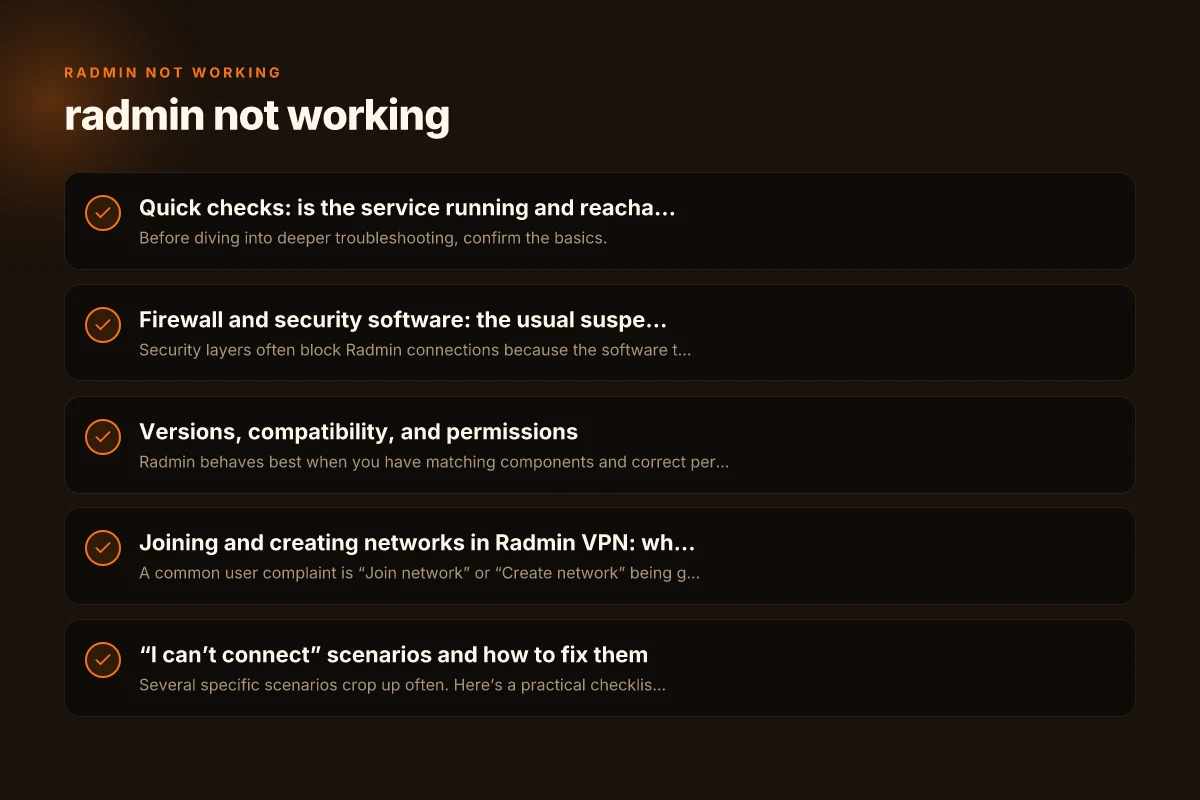
Quick checks: is the service running and reachable?
Before diving into deeper troubleshooting, confirm the basics.
- Verify that the Radmin service (Radmin Server or Radmin VPN service) is running.
- Confirm you can reach the remote host on the network (ping or traceroute can help determine if packets reach the target).
- Check that your internet connection is stable and not intermittently dropping.
- If you are on a corporate or restricted network, ask whether outbound VPN or Radmin traffic is blocked.
If the service isn’t running, start it from the Windows Services control panel (services.msc) or the Radmin control panel, then reattempt the connection.
Firewall and security software: the usual suspects
Security layers often block Radmin connections because the software treats remote administration traffic as suspicious.
- Add Radmin Server and Radmin Viewer (or Radmin VPN) as exceptions in:
- Windows Defender Firewall: inbound and outbound rules
- Any third-party firewall or security suite you use
- Any VPN-related protections that might block localhost-to-remote traffic
- Ensure the specific ports used by Radmin are open. For Radmin VPN, the software typically encapsulates traffic over the VPN tunnel, but host firewalls still need to permit the traffic within the tunnel.
- If you recently updated Windows or security software, re-check exceptions. Sometimes updates reset firewall rules.
Common symptom: “Cannot connect” or “connection blocked by firewall.” Action: pause or temporarily disable security software to verify if it’s the blocker, then re-enable with proper exceptions.
Firewall and security software impact Nursing leadership smart goals examples
| Component | Allow rules | Gateways affected | Protocols allowed | Conflicts | Recommended action |
|---|---|---|---|---|---|
| Windows Defender | allowed for radmin.exe | outgoing/incoming | TCP/UDP | false positives | add exception |
| Third-party firewall | inbound/outbound rules | remote access paths | TCP 5133, UDP 5000+ | blocking ports | create rulesets |
| VPN firewall | bypass if VPN | internal network traffic | - | block VPN traffic | disable/adjust VPN rules |
| Antivirus | exclusions | network scanning | - | false alerts | exclude radmin dirs |
| Host firewall policy | group policy | all endpoints | - | policy blocks | update GPOs |
Compiled November 2026; check the provider's site for current details.
Versions, compatibility, and permissions
Radmin behaves best when you have matching components and correct permissions.
- Verify you are using compatible versions of Radmin Server and Viewer. Some mismatches can cause authentication or handshake failures.
- Ensure you are running the applications with sufficient privileges. For Windows, right-click and choose “Run as administrator” if needed.
- On corporate devices, group policies or device management can restrict Radmin. Check with IT if the app is blocked or needs whitelisting.
- If you’re using Radmin VPN, ensure the VPN adapter is installed and enabled (viewable in Network Connections) and that the VPN network is joined or created with the correct permissions.
If the problem started after an update, consider rolling back to a previous version or applying any available hotfixes from Radmin’s support site.
Joining and creating networks in Radmin VPN: why the options are greyed out
A common user complaint is “Join network” or “Create network” being greyed out. This typically points to permission or configuration gaps rather than a software defect.
- Ensure you have a valid Radmin VPN license or are using a non-commercial, community edition if applicable.
- Check that the Radmin VPN service is running and that the user account has the rights to manage network settings.
- Verify your Windows user permissions: admin rights are often required to create or join networks.
- Review any group policy or endpoint management rules that might disable network configuration features.
- If you’re behind a proxy or corporate network with strict egress controls, VPN network creation may be blocked. Test on a different network (such as a home network) to isolate the issue.
If the gray-out persists, reinstall Radmin VPN to ensure all components, drivers, and the virtual network adapter are correctly installed. Keepassxc browser integration not working
“I can’t connect” scenarios and how to fix them
Several specific scenarios crop up often. Here’s a practical checklist you can apply quickly.
- Scenario: Can’t establish a connection between Radmin Server and Viewer
- Confirm the server is listed in the Viewer’s “Permissions” tab and that the viewer has permission to connect.
- Ensure IP addresses or hostnames are correct and not blocked by a firewall rule.
- Check credentials: re-enter the server’s username and password if required.
- Look at the service logs (Radmin Server logs) for error codes and messages that indicate a blocked port, authentication failure, or misconfigured permissions.
- Scenario: VPN-based connection is failing
- Ensure the VPN tunnel is established and shows as connected in the Radmin VPN interface.
- Verify there are no IP address conflicts on the VPN network.
- Check the VPN’s own firewall settings and allow traffic through the VPN interface.
- Scenario: Connection times out or stalls on “Connecting”
- Disable IPv6 if the environment has mid-level IPv6 routing issues (some users report stability issues with certain configurations).
- Verify DNS resolution works for remote hosts. Try connecting by IP address to bypass DNS problems.
- Restart the Radmin services and the computer to clear stuck states.
Practical troubleshooting flow: a compact runbook
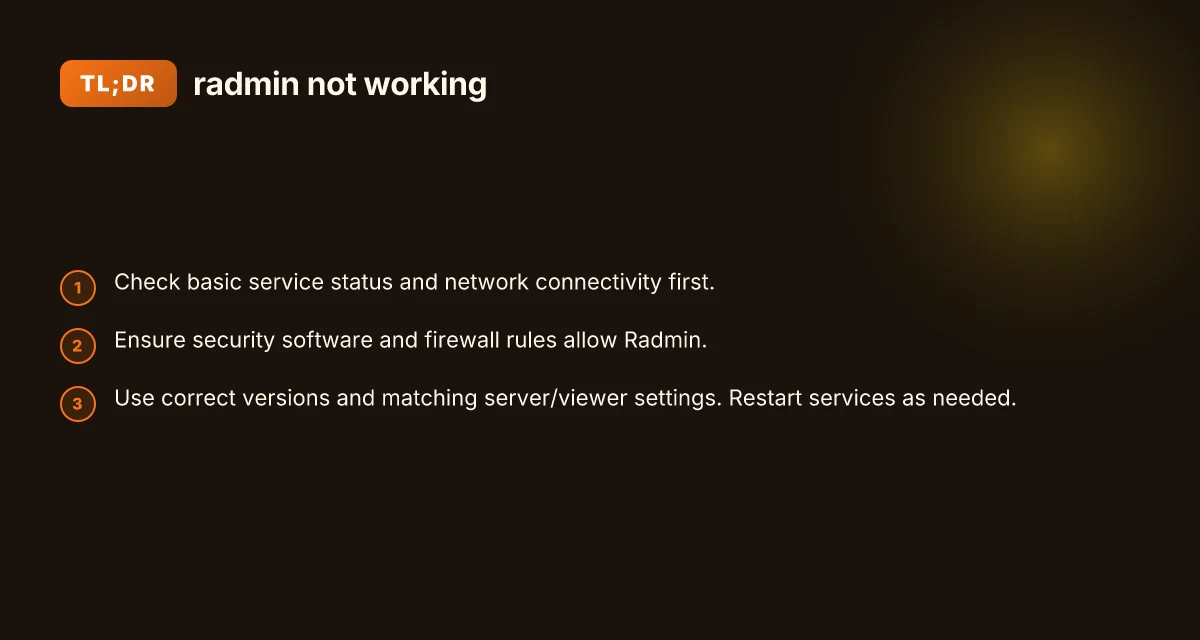
To repair most radmin-not-working scenarios, try this ordered approach.
- Step 1: Hardware and network basics
- Reboot the machines involved.
- Ping the remote host. Confirm basic connectivity.
- Check for latency spikes or packet loss.
- Step 2: Firewall and security
- Disable temporarily the firewall to test connectivity (then re-enable with precise rules).
- Add explicit allow rules for the Radmin applications and ports.
- Step 3: Software health
- Ensure you’re on supported OS versions (Windows 7 and above, per Radmin’s guidelines).
- Reinstall Radmin Server and Viewer or Radmin VPN if needed.
- Run as administrator to bypass UAC-related limitations.
- Step 4: VPN specifics (if using Radmin VPN)
- Confirm the VPN adapter is visible in network settings.
- Make sure you are connected to the correct VPN network and that endpoint devices are on the same network segment where required.
- Step 5: Logs and diagnostics
- Review application logs for specific error codes.
- Use built-in diagnostic tools in Radmin (if available) to test permissions and network reachability.
- Step 6: Last-mile verification
- Attempt a direct connection using IP address and not a hostname to rule out DNS issues.
- Temporarily test on a different network (e.g., home vs office) to see if the problem is network-restricted.
Radmin vs. alternative approaches: a quick comparison
Here is a simple comparison to help decide the best path when radmin isn’t working, especially around VPN vs. direct server-viewer setup.
| Scenario | Likely cause | Quick fix | When to use |
|---|---|---|---|
| Radmin VPN won’t connect | VPN adapter issue, blocked ports, firewall | Reinstall VPN, add firewall exceptions, restart VPN service | Remote access across networks |
| Radmin Server won’t start | Missing permissions, service not running | Start service from services.msc, run as admin | Central server management |
| Viewer can’t connect to server | Credentials or permissions wrong, network blocked | Check permissions list, re-enter credentials, ensure ports open | Day-to-day remote support |
| Greyed-out join/create network | Permissions, policy, or license limits | Check admin rights, policy restrictions, re-install | Setting up new VPN networks |
| Connection times out | Network routing or DNS, firewall | Test with IP, verify routing, adjust DNS | Quick diagnosis and ongoing reliability |
Best practices and tips
- Keep a clean exceptions list: periodically audit firewall rules to ensure Radmin isn’t stealth-blocked by updates or other software changes.
- Use official channels for updates: download Radmin components from the official site to avoid corrupted installers or mismatched versions.
- Document your configuration: maintain a small “lab book” of your server, viewer, and VPN settings. This helps when roles change or when you deploy to new machines.
- If you’re in a business environment, check with your IT department about allowed VPN traffic, remote administration tools, and any device enrollment policies that could influence Radmin.
Versions, compatibility, and permissions
| Item | Required version | OS compatibility | Admin rights | Permissions impact | Notes |
|---|---|---|---|---|---|
| Radmin main app | latest | Windows, some Linux via wrapper | yes | high | regular updates needed |
| Radmin VPN | latest | Windows, some Mac/Linux via client | yes | network join limited | check installer |
| .NET/.NET Core | version | Windows only | - | - | install if missing |
| Driver / TAP adapters | version | Windows | yes | device access | reinstall if missing |
| Admin权限 | - | - | required | access gates | ensure elevated rights |
Compiled November 2026; check the provider's site for current details. Independent contractor form 990 reporting requirements for non-profits
The recommendation: a practical path to get back to work
If radmin isn’t working, approach the problem methodically:
- Start with the basics: ensure services are running, the network is reachable, and the device isn’t blocked by security software.
- Move to permissions and policies: verify admin rights, policy allowances, and license constraints that could block features like joining or creating VPN networks.
- Isolate the issue: test components separately, VPN connectivity, server-viewer authentication, DNS resolution, and port accessibility. This lets you pinpoint whether the problem is VPN-related, server-side, or client-side.
- Reinstall as a last resort: if multiple components show signs of misconfiguration or corruption, a clean reinstall of Radmin Server, Viewer, and VPN typically resolves the most stubborn issues.
- Consult logs and official help resources: Radmin’s help pages and knowledge base pages (like helpdesk articles) provide targeted guidance and known-issue notes that can match your error messages.
In summary, “radmin not working” is usually a symptom of something fairly concrete: a firewall rule, a permissions issue, or a misconfigured VPN/network setting. By following the step-by-step checks above, you can systematically identify the root cause and restore remote access with minimal downtime. If you’re still stuck after going through these steps, consider capturing exact error messages, timestamps, and event logs, then reach out to official Radmin support with those details for more tailored guidance.