How to terminate an employee in workday
A practical guide to terminating an employee in Workday, covering initiation, data to gather, and common post-termination steps.
Workday is a powerful system for managing the lifecycle of an employee, including the termination process. If you’re preparing to terminate an employee, the key is to initiate the Terminate Employee action from the right place, provide accurate details, and complete all required follow-up steps in Workday. This guide walks you through the standard process and common considerations.

Quick comparison of termination paths in Workday
| Path Option | Eligibility | Initiation Point | Approval Required | Typical Completion Time | Notes |
|---|---|---|---|---|---|
| Mass termination | Multiple affected workers | HR/Supervisor tab | HRBP + Legal (varies) | Several hours to days | Use for large restructures |
| Single employee termination | One worker | Worker record > Actions | HRBP or Manager | Same day to next day | Most common |
| Voluntary separation | Employee-initiated | Employee self-service | Manager approval | 1–3 days | Not a termination for cause |
| Involuntary (at-will) | If allowed by policy | HR or Manager | Legal/HRBP | 1–3 days | Requires documentation |
Compiled November 2026; check the provider's site for current details.
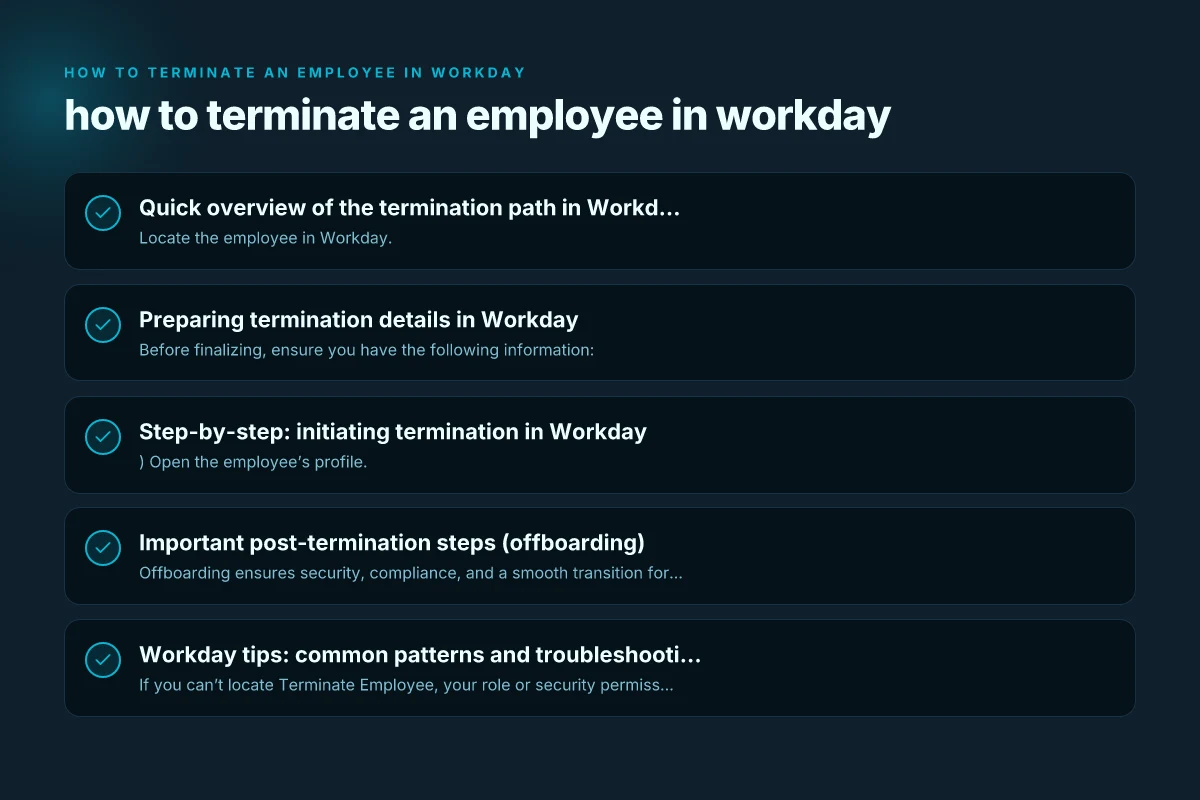
Quick overview of the termination path in Workday
- Locate the employee in Workday.
- Initiate the Terminate Employee action.
- Confirm last day, reason for termination, and any required fields.
- Save and submit the termination for approval if your process requires it.
- Complete offboarding tasks (return of company property, revocation of access, etc.).
- Ensure payroll and benefits are updated accordingly.
Where to start: locating the termination task
- From the employee’s profile, look for Actions.
- Hover over Job Change, then select Terminate Employee.
- Alternatively, use the Inbox (if your organization routes termination tasks there) and click the Submit Resignation or Termination task for the employee.
- If you’re managing a resignation, you may have an Inbox task named “Submit Resignation:
.”
Preparing termination details in Workday
Before finalizing, ensure you have the following information:
- Last day of employment: the date the employee will cease working and be eligible for final pay, if applicable.
- Termination reason: select from your organization’s predefined list (for example, “Voluntary resignation,” “Involuntary termination,” or other compliant categories).
- Termination date vs. final paycheck: align with local laws and your payroll process.
- Any required notes or justification for the termination.
- Return of company property and access revocation plan (IT accounts, badges, access to systems).
Fields you’ll commonly complete
- Last Day of Work
- Termination Reason
- Termination Date
- Rehire Eligibility (if applicable)
- Affected Elements (pay, benefits, stock, if your system uses these integrations)
- Optional: Termination Summary or Additional Details
Step-by-step: initiating termination in Workday
- Open the employee’s profile.
- Click Actions, then hover over Job Change.
- Choose Terminate Employee.
- Enter the required information:
- Last Day of Work
- Termination Reason
- Termination Date
- Save or Submit for approval, depending on your workflow.
- If your organization uses an approval step, route the termination for approval to the appropriate supervisor or HR partner.
Termination via Inbox (for some organizations)
- In the Workday homepage, click the Inbox icon.
- Find and open the task related to termination or resignation for the specific employee.
- Complete any required fields and submit the task for approval or finalize the termination.
Preparing termination details in Workday
| Data area | What to enter | Required fields | Validation | Suggested best practice | Outcome |
|---|---|---|---|---|---|
| Employee details | Employee name, ID | Employee, Job, Dept | Active status | Verify identity | Ready for action |
| Termination reason | Reason code | Termination type | Valid code | Align with policy | Proper categorization |
| Effective date | Termination date | Date, last day | Not in future | Align with payroll | Payroll ready |
| Final pay | Accruals, bonuses | Pay components | Accuracy check | Run before close | Correct final payout |
| Security access | Offboarding tasks | Access removal, revocation | Yes/No | Complete before offboarding | Access secured |
Compiled November 2026; check the provider's site for current details.
Important post-termination steps (offboarding)
Offboarding ensures security, compliance, and a smooth transition for the employee and the organization.
IT and access revocation
- Schedule revocation of system access, email, VPN, and other accounts effective on the last day.
- Disable or collect company devices and badges.
- Update any shared documents or access controls tied to the employee’s roles.
Payroll and benefits
- Ensure final pay is calculated correctly, including unused vacation or PTO per policy and local law.
- Verify benefits status, COBRA or similar programs if applicable.
- If the employee is in a leave or severance program, confirm the terms and payments.
Reassignment and knowledge transfer
- Identify ongoing projects and assign successors or handover tasks.
- Capture critical knowledge or documentation the employee was responsible for.
- Notify relevant teams about transitions and access changes.
Compliance and records
- Retain necessary records per policy and legal requirements.
- Archive the employee’s profile if your organization uses archival processes.
- Document the termination reason and decision in Workday in case of audits.
Workday tips: common patterns and troubleshooting
- If you can’t locate Terminate Employee, your role or security permissions may be restricting access. Contact your HRIS administrator to confirm permissions or receive the appropriate task assignment.
- If your organization requires multiple approvals, ensure the termination task is routed to all required approvers and that any dependencies (like final payroll approval) are satisfied.
- Always double-check the Last Day of Work. Misalignment with payroll cutoff dates can cause payroll errors.
Quick comparison: terminate employee vs. other related actions
| Action | When to use | Key fields typically required | Impact on payroll and benefits |
|---|---|---|---|
| Terminate Employee | Ending employment | Last Day of Work, Termination Reason, Termination Date | Final paycheck handling; benefits status changes |
| Resignation submission (by manager) | Manager initiates a voluntary departure | Employee name in task, resignation date | May trigger standard offboarding tasks; similar payroll considerations |
| Job Change > Terminate Employee | Role-based termination or transition | Last Day, Reason, related job element | Similar to terminate, but may intersect with role changes and job records |
Common challenges and how to address them
- Challenge: Inadequate termination reasons causing compliance concerns.
- Solution: Use your organization’s predefined termination reason codes and add notes only as needed to clarify context without exposing sensitive information.
- Challenge: Delayed final pay processing.
- Solution: Coordinate with payroll early, confirm last working day and final pay date, and ensure all required approvals are in place before the last day.
- Challenge: Access remains after termination.
- Solution: Plan proactive IT revocation and conduct a post-termination access review to ensure all systems are closed.
Step-by-step: initiating termination in Workday How to swap bitcoin to fiat-backed stablecoins binance
| Step | Action | Actor | System path | Data needed | Typical timing |
|---|---|---|---|---|---|
| 1 | Open employee record | HRBP/Manager | Workday > Worker | Employee ID | Immediate |
| 2 | Choose termination event | HRBP/Manager | Actions > Termination | Termination type | 0–5 min |
| 3 | Enter details | HRBP | Termination screen | Reason, date | 5–10 min |
| 4 | Submit for approval | HRBP/Manager | Submit window | Approvers | 1–2 days |
| 5 | Confirm payment setup | Payroll | Payroll link | Final pay data | 0–1 day |
Compiled November 2026; check the provider's site for current details.
Best practices for a clean termination process in Workday
- Align with local labor laws and company policies for last pay, benefits, and notice periods.
- Maintain clear documentation of the termination decision within Workday and any supporting notes.
- Coordinate with HR, payroll, IT, and the employee’s manager to ensure a smooth transition.
- Use consistent termination reasons and fields across departments to simplify reporting and audits.
- Train managers on where to find the Terminate Employee task and what information to provide.
Final recommendations
If you’re new to terminating employees in Workday, start by locating the terminate action from the employee’s profile or the manager’s Inbox task. Gather all required data before submitting, and follow your organization’s offboarding protocol to handle IT access, payroll, benefits, and records. By planning the termination in Workday carefully and collaborating with the right teams, you can minimize risk and ensure a compliant, respectful process for everyone involved.