Norton Secure VPN keeps turning off
Practical steps to diagnose and fix Norton Secure VPN disconnects and keep it reliable.
If Norton Secure VPN keeps turning off, you’re likely dealing with a mix of app settings, network hiccups, and potential software conflicts. This guide walks you through practical steps to diagnose the cause and restore stable VPN performance. Start with the simplest fixes and move toward more advanced troubleshooting as needed.

Basic checks to confirm app state and network
| Step | What to check | Expected result | Action if not OK |
|---|---|---|---|
| 1 | VPN app status | Running / connected | Restart app or device |
| 2 | Network connection | Active internet | Switch network or reconnect |
| 3 | Wi‑Fi vs mobile data | Stable connection on either | Try other network type |
| 4 | Battery saver | Enabled / Limited | Disable battery saver for VPN |
| 5 | OS permissions | VPN allowed | Grant necessary permissions |
| 6 | Time/date sync | Correct | Adjust if off by minutes/hours |
Compiled November 2026; check the provider's site for current details.
Start with the basics: confirm the app state and device network
Common causes of Norton Secure VPN turning off include:
- The VPN is not actually connected to a server but attempting to connect repeatedly.
- Your device’s network connection is unstable or intermittently dropping.
- Auto-Connect and Kill Switch settings are interfering with normal operation.
What to check
- Ensure your device has a stable internet connection (Wi‑Fi or cellular).
- Open Norton Secure VPN and verify whether the status shows “Connected” or “Connecting.” If it shows Connecting for a long time, move to the connection troubleshooting steps.
- Check for competing VPNs or security tools that could conflict with Norton Secure VPN.
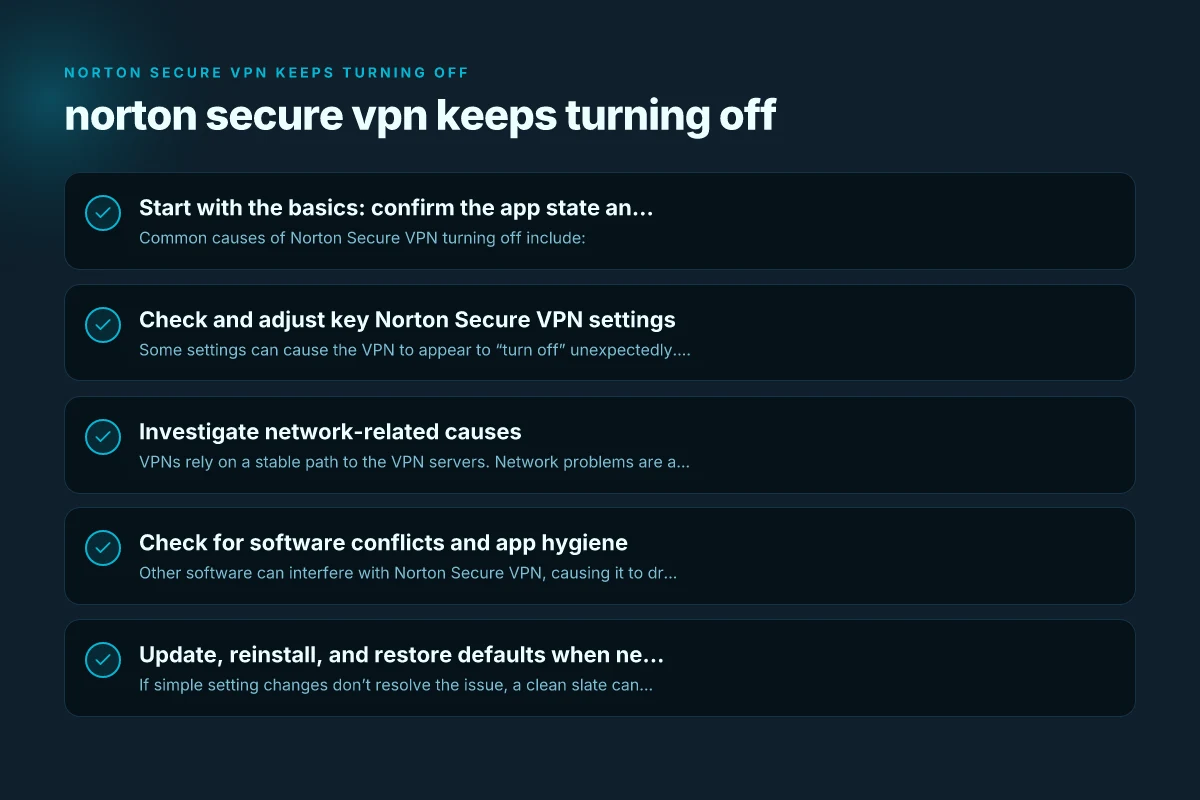
Check and adjust key Norton Secure VPN settings
Some settings can cause the VPN to appear to “turn off” unexpectedly. Review these in the Norton app:
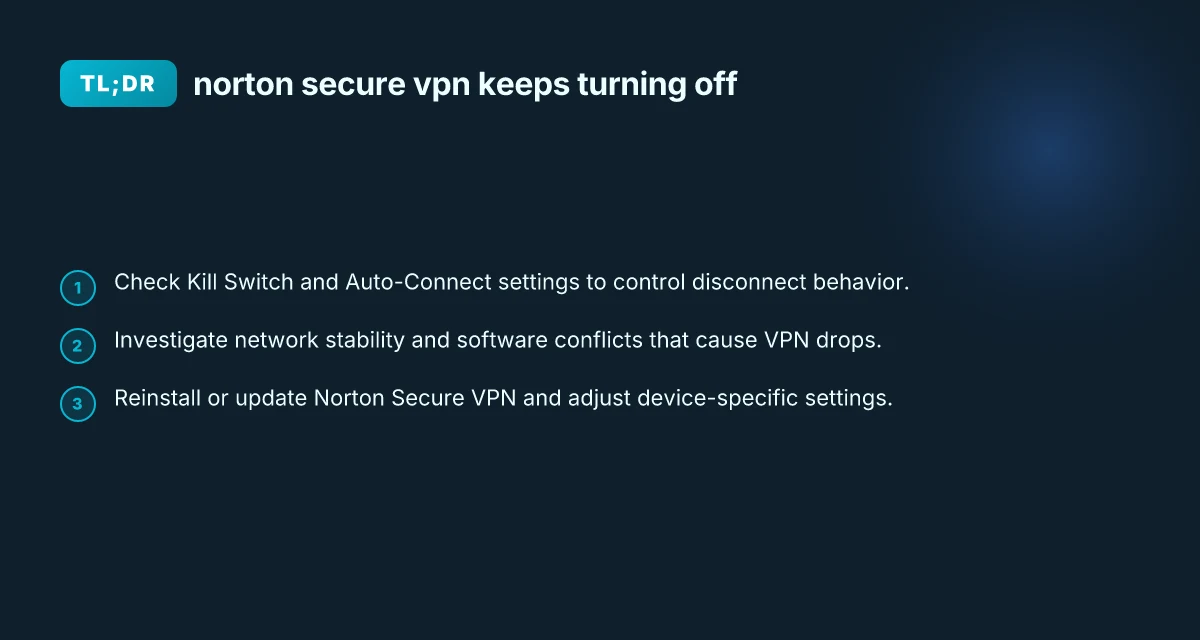
- Auto-Connect: If enabled, the VPN may disconnect on certain networks or when switching between networks.
- Kill Switch: If enabled, it can disconnect traffic if the VPN drops, which might feel like the VPN shutting off.
- Network protection features: Some devices have built-in security features that can interrupt VPN tunnels.
What to do
- In the Norton Secure VPN app, go to Settings.
- If Auto-Connect is on, try turning it off temporarily to see if the problem persists.
- If Kill Switch is on, test with it off to determine if it’s the cause.
- Re-enable features gradually after you confirm stability on a given network.
Practical steps to test settings
- Test a stable home Wi‑Fi network with Auto-Connect off and Kill Switch off.
- Then test with Auto-Connect on but Kill Switch off.
- Finally, test with both features on to compare stability.
Key Norton Secure VPN settings to review Nordpass extension not working
| Setting | Current state | Recommended state | Impact |
|---|---|---|---|
| Auto-connect | On / Off | On (trusted networks) | Keeps VPN on automatically |
| Kill switch | Enabled / Disabled | Enabled | Prevent leaks if VPN drops |
| Protocol | OpenVPN/IPSec/Auto | Auto or OpenVPN | Stability and speed balance |
| Network protection | On / Off | On | Adds extra safety |
| DNS protection | On / Off | On | Prevent DNS leaks |
| Smart routing | On / Off | Off or On as needed | Control bypass behavior |
Compiled November 2026; check the provider's site for current details.
Investigate network-related causes
VPNs rely on a stable path to the VPN servers. Network problems are a frequent source of disconnections.
Red flags
- Frequent packet loss or high latency on your network.
- Intermittent internet access when VPN is enabled.
- Switching between Wi‑Fi networks or poor cellular signal.
What to try
- Run a quick network health check: ping google.com or your preferred ping target. Observe jitter and packet loss.
- If you’re on Wi‑Fi, try a wired Ethernet connection if possible to see if stability improves.
- Reboot your router and modem. Let devices reconnect fresh.
- Temporarily disable other network-heavy apps or devices that may saturate bandwidth.
Check for software conflicts and app hygiene
Other software can interfere with Norton Secure VPN, causing it to drop or fail to connect. Wsl2 not working with VPN
Common culprits
- Other VPN clients installed on the same device.
- Firewall or security suites that block VPN traffic.
- VPN-related ad-ons or browser extensions interfering with traffic routing.
What to do
- Make sure no other VPNs are installed or active on the device.
- Temporarily disable third‑party firewalls or security tools to see if VPN behavior changes.
- Update Norton Secure VPN to the latest version. Ensure all system security software is current.
- If you use a mobile device, check for any battery optimization or data saver modes that may interrupt VPN processes.
Update, reinstall, and restore defaults when needed
If simple setting changes don’t resolve the issue, a clean slate can help.
Recommended steps
- Update Norton Secure VPN and the device’s operating system to the latest versions.
- If updates don’t resolve the problem, uninstall Norton Secure VPN and reinstall it fresh.
- After reinstall, reconfigure settings deliberately (Auto-Connect, Kill Switch, and preferred servers).
What to keep in mind Argos refund policy online returns
- Reinstalling can reset corrupted app data or misconfigurations that were causing disconnections.
- After reinstall, test on a stable network before enabling more aggressive features like Auto-Connect or Kill Switch.
Use a structured troubleshooting table to organize fixes
| Issue observed | Likely cause | Quick fix | Confirm result |
|---|---|---|---|
| VPN stuck on Connecting | Server side issue or local network instability | Check network stability; try another server; restart the app | VPN connects to a server and stays connected |
| VPN disconnects frequently | Kill Switch or Auto-Connect interactions; network drops | Temporarily disable Kill Switch; disable Auto-Connect; test | Stable connection remains active |
| VPN not connecting at all | Incompatible settings or outdated app | Update app; reinstall if needed; reset to default settings | VPN shows Connected on a test server |
| VPN works on some networks but not others | Network-specific firewall or NAT issues | Try different server; use a more permissive network; adjust router settings | Consistent connection across networks |
Android, iOS, Windows, and macOS: platform-specific notes
- Android: Auto-Connect settings and battery optimization can cause VPN to turn off. Ensure Norton Secure VPN has unrestricted battery optimization and background activity allowed.
- iOS: iOS privacy and networking settings can influence VPN behavior. Re-check permissions and ensure the VPN profile is trusted.
- Windows/macOS: System firewalls and third-party security suites are more likely to conflict. Temporarily disable other security tools while testing, then re-enable with monitoring.
Platform-specific quick tips
- Android: Settings > Network and Internet > VPN > Norton Secure VPN. Review Auto-Connect and Background activity options.
- iOS: Settings > Privacy > VPN. Verify that Norton Secure VPN is allowed to configure VPN connections.
- Windows: Settings > Network & Internet > VPN. Verify the connection status and allow Norton Secure VPN through firewall.
- macOS: System Settings > Network > Norton Secure VPN. Ensure the service is connected and allowed in security settings.
Common network-related causes and fixes
| Cause | Symptom | Fix | Notes |
|---|---|---|---|
| Wi‑Fi dropouts | VPN disconnects | Toggle to cellular or reconnect Wi‑Fi | Stable network helps VPN |
| High latency | Slower performance | Use closer server, switch region | May affect connectivity |
| VPN server load | Drops / slow | Change server | Try multiple servers |
| Firewall blocking | No connection | Allow VPN app in firewall | OS or router level |
| ISP interference | Intermittent -> blocked | Use obfuscated/SSL or different port | P2P or streaming VPN behavior |
Compiled November 2026; check the provider's site for current details.
When to contact Norton support or seek advanced help
If you’ve gone through the steps above and Norton Secure VPN still keeps turning off, it’s time to escalate.
What to prepare Big-IP Edge: what it is, how it works, and what readers should know
- A brief description of the issue (e.g., “VPN disconnects after X minutes” or “VPN stays on for a moment then drops”).
- Your device type and OS version.
- Norton Secure VPN version and any recent app or OS updates.
- A list of steps you’ve already tried (settings changes, server tests, and reinstall attempts).
How to reach support
- Norton Support: use the official support site for your region, lookup Solutions or Contact options.
- Community forums: Norton Community often has user-reported workarounds for specific devices or network environments.
- If you suspect a broader outage, check Norton’s status pages or social channels for service advisories.
Final thought: a methodical approach pays off
Norton Secure VPN turning off is usually a sign that something in the chain, app settings, local network stability, or software conflicts, is interrupting the secure tunnel. Start with the simplest changes, like toggling Auto-Connect and Kill Switch, then verify on a stable network. If the problem persists, work through network, software compatibility, and freshness of the app. With a systematic approach, you can restore reliable, private browsing and uninterrupted access.
RECOMMENDATION
- Begin by testing on a single, stable network with Auto-Connect off and Kill Switch off to establish a baseline.
- If stability improves, reintroduce features one by one to identify the exact cause.
- Keep Norton Secure VPN and your device OS up to date, and consider a clean reinstall if issues persist.
- If problems continue after these steps, contact Norton support with your diagnostics and the steps you’ve tried.
| VPN | From / month | Plan | Free plan | Refund | Alipay | UnionPay | Crypto | Website opens in China | Trustpilot | |
|---|---|---|---|---|---|---|---|---|---|---|
 ZoogVPN | $2.49/mo | 27 months: $59.99 | Yes | 7 days | ✓ | ✓ | ✓ | ✓ | ✓ Yes (2.5 s) | 4.2/5 (195 reviews) |
 NordVPN | $3.49/mo | 27 months: $94.23 | No | 30 days | ? | ✗ | ✓ | ✓ | ✗ Blocked | 4.2/5 (51,628 reviews) |
 ExpressVPN | $3.00/mo | 28 months: $84 | No | 30 days | ✗ | ✗ | ✓ | ✗ | ✗ Blocked | 4.4/5 (29,706 reviews) |
 Surfshark | See site | See site | No | 30 days | ✗ | ✗ | ✗ | ✓ | ✗ Blocked | 4.3/5 (31,823 reviews) |
 Proton VPN | $2.99/mo | 12 months: $35.88 | Yes | 30 days | ✗ | ✗ | ✗ | ✓ | ✓ Yes (2.5 s) | 2.1/5 (1,040 reviews) |
 Astrill VPN | $12.50/mo | 24 months: $300 | No | See site | ✗ | ✗ | ✗ | ✓ | ✗ Blocked | 1.3/5 (110 reviews) |
 Private Internet Access | $2.03/mo | 40 months: $81.2 | No | 30 days | ✗ | ✗ | ✗ | ✗ | ✗ Blocked | 4.2/5 (11,033 reviews) |
 CyberGhost | $2.19/mo | 28 months: $61.32 | No | 45 days | ✗ | ✗ | ✗ | ✓ | ✗ Blocked | 4.0/5 (24,178 reviews) |
 PureVPN | $1.69/mo | 60 months: $101.55 | No | 31 days | ? | ✗ | ✗ | ✓ | ✓ Yes (2.6 s) | 4.4/5 (17,994 reviews) |
 AdGuard VPN | $2.99/mo | 24 months: $71.76 | Yes | 30 days | ✓ | ✗ | ✓ | ✓ | Official site blocked; our special link opens (2.3 s) | 4.3/5 (290 reviews) |
 Mullvad | $5.61/mo | €5/mo | No | 14 days | ✗ | ✗ | ✗ | ✓ | ✗ Blocked | 3.2/5 (192 reviews) |
 Windscribe | $5.75/mo | 12 months: $69 | Yes | See site | ✗ | ✗ | ✗ | ✓ | ✗ Blocked | 4.7/5 (13,355 reviews) |
 StrongVPN | See site | See site | No | 30 days | ✓ | ✗ | ✗ | ✗ | ✗ Blocked | 4.4/5 (2,695 reviews) |
 LightXtreme 闪连 | $7.08/mo | 12 months: $84.99 | Yes | 30 days | ✓ | ✓ | ✓ | ✓ | ✓ Yes (2.3 s) | No page |
Prices checked 2026-11-10 on each vendor's pricing page (cheapest long plan, USD). Check the vendor's checkout for the final price.
Payment methods checked 2026-11-10 on each vendor's payment pages: all 14 take cards and PayPal; ✗ = not listed, ? = the vendor's own pages disagree.
China access: whether the official website opens from mainland China networks (tests the website only, not the VPN connection). Last checked 2026-11-11 04:07 Beijing time.
Trustpilot score and review count checked 2026-11-10.