Wsl2 not working with VPN
Practical guide to troubleshooting WSL2 network issues when a VPN is active, with steps and tips.
WSL2 not working with VPN
If you rely on both Windows VPNs and WSL2 for development or testing, you’ve likely run into a moment where the VPN connection breaks WSL2’s access to the internet. This guide pulls together practical steps to diagnose and fix common causes, with safe, repeatable actions you can follow.

Comparison of VPN types and WSL2 compatibility
| VPN Type | WSL2 Networking Impact | Typical Fixes | Notes |
|---|---|---|---|
| Full-tunnel VPN | Often disrupts DNS and routing | Enable split tunneling; adjust DNS; use VPN with WSL2 support | Can be incompatible with WSL2 by default |
| Split-tunnel VPN | More likely to work; selective traffic | Route WSL2 traffic through VPN; verify interfaces | Best balance for WSL2 and VPN |
| VPN Client with NIC binding | Varies by client | Bind WSL2 to VPN adapter; update client | Some clients allow binding to virtual NIC |
| Cloud/Corporate VPN (Zero Trust, SASE) | Frequent WSL2 DNS/routing issues | Use internal DNS, disable IPv6, adjust MTU | Enterprise policies may apply |
| Personal VPN app | Mixed results | Test with and without VPN; use network reset | Behavior depends on app implementation |
| VPN over WSL2 (if supported) | Possible but uncommon | Enable VPN inside WSL2, or host VPN | Not widely available; may require workarounds |
Compiled November 2026; check the provider's site for current details.
Why VPNs disrupt WSL2 networking
WSL2 uses a lightweight virtualized network adapter and routes traffic through Windows’ networking stack. When a VPN connects, Windows may push new routes, DNS servers, or adapter bindings that conflict with the WSL2 virtual network. As a result:
- DNS resolution can fail inside WSL2 while the Windows host is VPN-connected.
- Routes intended for the host or local network may be overridden, isolating WSL2 from the broader network.
- Some VPN clients create their own DNS or VPN adapters that WSL2 doesn’t automatically recognize.
Understanding these interactions helps you pick the right fix rather than trying generic “reset everything” steps.
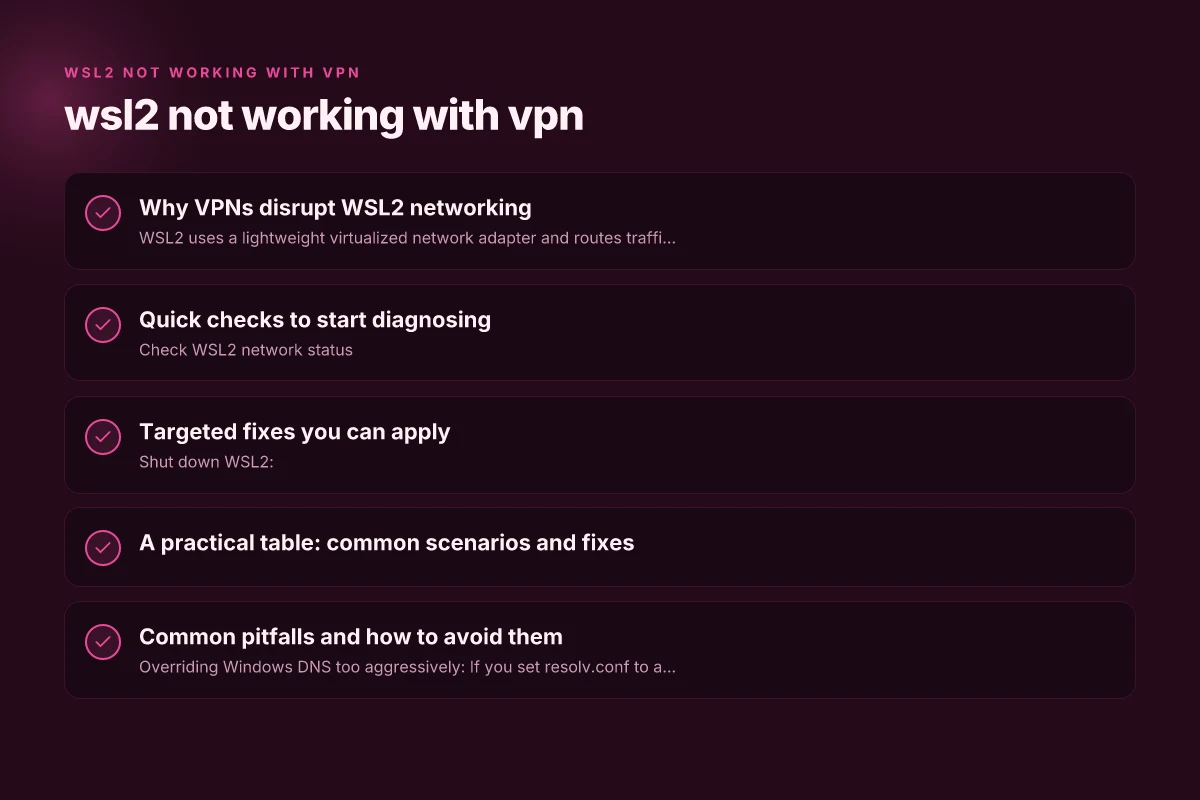
Quick checks to start diagnosing
- Check WSL2 network status
- In Windows PowerShell or CMD, run:
- wsl, shutdown
- wsl
- Try pinging a public IP (e.g., ping 8.8.8.8) and a domain (e.g., ping google.com)
- Check Windows VPN status
- Confirm the VPN is connected and look for new VPN adapters in Network Connections.
- Note the DNS server addresses shown in the VPN adapter’s details.
- Compare DNS behavior
- In WSL2, try nslookup google.com to see if DNS resolution works.
- If DNS fails but IP connectivity works, focus on DNS configuration.
- Review Windows firewall and security software
- Some security suites can block WSL2 traffic when a VPN is active.
Targeted fixes you can apply
A. Restart the WSL2 networking after VPN connects
- Shut down WSL2:
- Open PowerShell as Administrator and run: wsl, shutdown
- Reopen WSL2 and test connectivity
- If still blocked, proceed to DNS adjustments.
B. Configure DNS for WSL2 when VPN is active
- The problem often is DNS rather than basic connectivity.
- Steps to set DNS inside WSL2:
- Create or modify /etc/resolv.conf to point to reliable DNS servers, e.g.:
- nameserver 1.1.1.1
- nameserver 9.9.9.9
- Important: WSL2 may auto-generate resolv.conf on restart. Disable auto-generation if needed by editing /etc/wsl.conf:
- [network]
- generateResolvConf = false
- Then create a manual resolv.conf with the desired DNS servers and restart WSL2.
C. Use VPN DNS server addresses inside WSL2
- If your VPN provides DNS server addresses (from the VPN adapter details), copy those IPs.
- Inside WSL2, set them in /etc/resolv.conf or in /etc/wsl.conf as part of a startup script.
- This helps ensure WSL2 uses the same DNS as Windows when the VPN is active.
D. Adjust Windows routing behavior for WSL2
- Some VPNs push strict routes that can block WSL2’s default route.
- You can add a specific route for WSL2’s virtual network if needed, but this is more advanced.
- Use a conservative approach: only modify routes if you understand your VPN’s topology or if a networking professional guides you.
E. Rebind or re-create the WSL2 network interface
- If the virtual switch or vEthernet adapter changes under VPN, you may need to reset it:
- In PowerShell, list adapters: Get-NetIPInterface
- Identify the WSL interface (often named vEthernet (WSL)).
- Disable and re-enable:
- Disable-NetAdapter -Name "vEthernet (WSL)" -Confirm:$false
- Enable-NetAdapter -Name "vEthernet (WSL)" -Confirm:$false
- Then reboot WSL2.
F. Consider VPN client-specific guidance
- Cisco AnyConnect and similar clients sometimes require a specific split-tunnel or full-tunnel approach.
- Check if the VPN offers an option to “Allow LAN access” or similar. Enabling it can restore WSL2 reachability to local networks.
- Some clients provide a “DNS proxy” or “force DNS server” setting. Aligning WSL2 to those DNS servers can help.
Quick checks to start diagnosing
| Check | Status (Yes/No) | Action if No | Expected outcome |
|---|---|---|---|
| Can ping host from WSL2 | Yes/No | Restart WSL2; disable firewall | Connectivity clarified |
| Can reach external site from Windows | Yes/No | Check VPN status; reset network | Internet access confirmed |
| DNS resolution from WSL2 | Works/Not working | Set /etc/resolv.conf; use Google DNS | DNS resolves domain names |
| VPN is connected | Yes/No | Reconnect; reauthenticate | VPN path active |
| Windows network isolation off | Yes/No | Disable firewall/AV; allow WSL2 | Networking allowed |
| MTU issues observed | Yes/No | Lower MTU; adjust tunnel | Fewer fragmentation problems |
Compiled November 2026; check the provider's site for current details.
A practical table: common scenarios and fixes
| Scenario | Symptoms | Recommended fix | Notes |
|---|---|---|---|
| VPN connected; WSL2 has no internet | Pings fail or DNS inside WSL2 fails | Set resolv.conf DNS to public DNS; or point to VPN DNS | Start with DNS changes |
| VPN connected; WSL2 can ping IPs but not domain | DNS resolution failure in WSL2 | Ensure /etc/resolv.conf exists and is correct; disable auto-resolve generation | may require /etc/wsl.conf tweaks |
| VPN uses new VPN adapter and routes | Instances of blocked traffic or instability | Reset WSL2 network interface; rebind adapter; ensure route presence | More advanced; proceed carefully |
| DNS works on Windows but not WSL2 | DNS discrepancy between Windows and WSL2 | Align WSL2 DNS with Windows VPN DNS or set manual DNS | Reboot WSL2 after changes |
Common pitfalls and how to avoid them
- Overriding Windows DNS too aggressively: If you set resolv.conf to a public DNS for every VPN session, you may disrupt name resolution when VPN is not connected. Use a conditional approach or script that only applies changes when VPN is active.
- Auto-generated resolv.conf regenerates: WSL2 can rewrite resolv.conf on startup. Use wsl.conf to disable automatic regeneration if you are managing DNS manually.
- VPN client updates can reset adapters: After a VPN client update, you may need to re-check the WSL2 interface and DNS settings, as adapters or routes may shift.
When to escalate or seek help
- If you have tried these steps across multiple VPN clients or networks and WSL2 remains blocked, capture logs:
- Windows event logs for VPN activity
- WSL2 startup output and dmesg within WSL
- Post on relevant forums with specifics:
- WSL GitHub issues for your Windows version and WSL2 build
- Cisco AnyConnect or your VPN client support forums for known TLS/DNS nuances with virtualization
Targeted fixes you can apply Argos refund policy online returns
| Fix | Applies to VPN type | Impact | Caveat |
|---|---|---|---|
| Enable split tunneling | Yes/No | Improves WSL2 access | Security posture changes |
| Set WSL2 DNS to public | Yes/No | DNS works from WSL2 | Requires edit to /etc/resolv.conf |
| Disable IPv6 in WSL2 | Yes/No | Simplifies routing | Some apps rely on IPv6 |
| Reconfigure Windows firewall | Yes/No | Opens WSL2 traffic | Potential security risk |
| Bind WSL2 to VPN adapter | Yes/No | Direct route through VPN | VPN client capability needed |
| Restart LxssManager | Yes/No | Applies changes | Minimal downtime |
| Update Windows and WSL | Yes/No | Bug fix eligibility | Reboot may be required |
Compiled November 2026; check the provider's site for current details.
Practical troubleshooting checklist (repeatable workflow)
- Step 1: Disconnect VPN. Confirm WSL2 connectivity back to normal.
- Step 2: Reconnect VPN. Note which VPN adapter appears and its DNS settings.
- Step 3: In WSL2, test DNS:
- ping 8.8.8.8 (IP works?)
- nslookup google.com (DNS works?)
- Step 4: If DNS fails in WSL2, edit /etc/resolv.conf to point to reliable DNS (or VPN DNS) and set generateResolvConf = false in /etc/wsl.conf.
- Step 5: If IP works but domain fails, recheck resolv.conf and route settings. Consider a VPN DNS proxy option if provided by the client.
- Step 6: If issues persist, reset WSL2 networking by shutting down WSL and restarting the WSL2 VM, then re-test.
Recommendation
If you frequently switch between VPN usage and normal operation, the most reliable approach is to control DNS explicitly from within WSL2 and minimize automatic changes by Windows’ VPN. Create a small, safe script to:
- Stop WSL2, restore a known resolv.conf (or an empty file if you want to use Windows’ DNS handling), and restart WSL2.
- When VPN connects, switch to VPN DNS servers only while VPN is active, then revert when it disconnects. Consider documenting your VPN’s network behavior (which DNS servers it pushes, whether it uses split-tunneling) so you can apply the exact DNS/IP changes you rely on.
In short: WSL2 not working with VPN is commonly caused by DNS or routing changes the VPN introduces. Target DNS configuration inside WSL2, ensure resolv.conf is stable, and, if needed, adjust Windows routing or rebind the WSL2 network adapter. With a disciplined, repeatable DNS-first approach, you can restore reliable connectivity for both VPN-enabled and VPN-free workflows.