NordVPN threat protection pro not turning on
Troubleshooting guide for when Threat Protection Pro won't activate in NordVPN across platforms, with practical steps and tips.
NordVPN Threat Protection Pro is designed to block malware, trackers, and other threats in real time. When Threat Protection Pro won’t turn on, it can feel like the feature is broken or that your protection isn’t active. The good news is that most issues are resolvable with a few targeted steps. This guide walks you through common causes and practical fixes so you can get Threat Protection Pro up and running again.

Quick checks you can perform before deeper fixes
| Check | Expected result | If not working | Notes |
|---|---|---|---|
| NordVPN app installed | Yes | No | Ensure app is installed and updated |
| Protection toggle | On | Off | Manually toggle to ON |
| OS requiring reboot | No | Yes | Reboot if prompted |
| Conflicting antivirus | No | Yes | Temporarily disable during test |
| Internet connection | Stable | Unstable | Use wired or strong Wi‑Fi |
| VPN mode | Enabled | Disabled | Verify protection mode is active |
Compiled November 2026; check the provider's site for current details.
Quick checks: the simplest fixes first
If Threat Protection Pro won’t turn on, start with the easiest steps. These resolve many activation issues without diving into settings or reinstalls.
- Verify the toggle: In the NordVPN app, locate the Threat Protection or shield icon, and switch it to the On position. Some users report a “loading wheel” that can persist briefly. If it stays long, proceed to more robust steps.
- Check internet connection: Threat Protection requires a live connection to NordVPN servers and protection databases. Ensure you’re online and not behind a captive portal or VPN-detecting network.
- Sign out and sign back in: In the app, log out, then sign back in. This refreshes your session and can restore the feature toggle.
- Restart the app: Fully close the NordVPN app (or quit from the system tray/dock). Reopen and try turning on Threat Protection again.
- Reboot the device: A full reboot clears stuck processes that may hold the feature off.
If the quick checks don’t resolve the issue, move on to platform-specific steps.
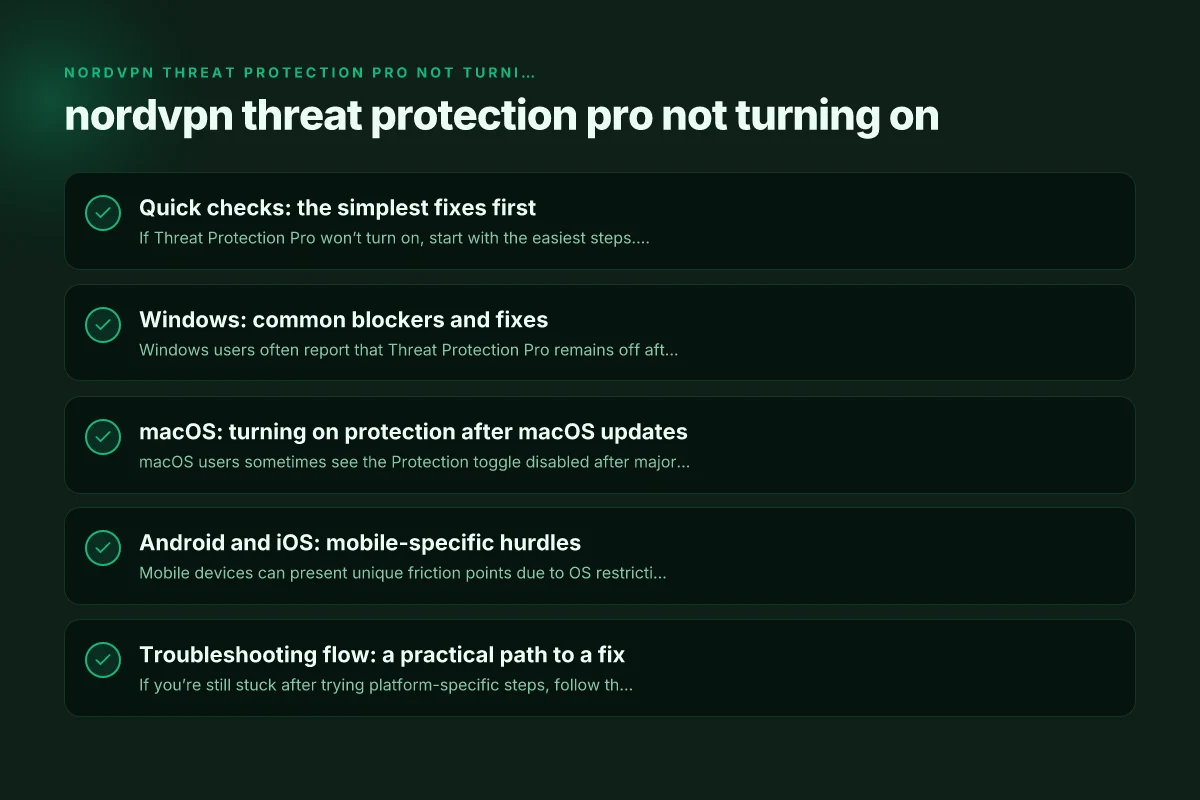
Windows: common blockers and fixes
Windows users often report that Threat Protection Pro remains off after an update or after a system change. Try these steps to resolve Windows-specific issues.
- Run as administrator: Right-click the NordVPN shortcut and choose “Run as administrator” before attempting to enable Threat Protection. This grants the app the necessary permissions to apply real-time protection.
- Check Windows Defender and other AV: Sometimes third-party antivirus or Windows Defender settings conflict with NordVPN’s protection layer.
- Temporarily disable real-time protection to test if Threat Protection can be enabled. If it turns on, re-enable Defender and configure allowed apps or exclusions for NordVPN.
- Reinstall NordVPN: If the feature still won’t activate, uninstall NordVPN, restart, and reinstall the latest version from NordVPN’s site.
- Update network drivers: Outdated network adapters can interfere with real-time protection. Update drivers via Device Manager or the manufacturer’s site.
- Examine firewall rules: Ensure no firewall rule blocks NordVPN’s Threat Protection service. Add an exception if needed.
MacOS: turning on protection after macOS updates
macOS users sometimes see the Protection toggle disabled after major OS updates or due to macOS privacy prompts. Use these steps to reset the permissions and activation path.
- Grant required permissions: Threat Protection may need to access network filtering or system extensions. Open System Settings > Privacy & Security > Full Disk Access, and ensure NordVPN is allowed where applicable. Also check Accessibility for NordVPN.
- Try the “Try again” path: If you see a specific error message in the Mac app, click Try again. If that fails, log out and back in, then attempt to enable again.
- Reinstall the macOS app: Remove NordVPN, reboot, then install the latest version. macOS sometimes blocks extensions after updates. Reinstalling reinstates the necessary components.
- Check system extensions: Sometimes macOS blocks new network extensions until you approve them. In System Preferences, approve the NordVPN system extension if prompted.
- Reset network settings: In some cases, resetting network settings (or renewing DHCP lease) can help the app establish its protection layer.
Platform-specific blockers and fixes snapshot Best VPN for opnsense
| Platform | Common blocker | Fix approach | Status check | Tip |
|---|---|---|---|---|
| Windows | Firewall block | Add exception | On | Reopen NordVPN, retry |
| MacOS | Privacy prompt blocked | Accept prompt | Granted | Check System Preferences |
| Android | Battery optimization | Exclude app | Disabled | Remove app from optimize list |
| iOS | Background activity | Allow access | Allowed | Ensure KB updates done |
| General | Network policy | Ajust policy | Permit | Try different network |
Compiled November 2026; check the provider's site for current details.
Android and iOS: mobile-specific hurdles
Mobile devices can present unique friction points due to OS restrictions, app permissions, and battery optimization settings.
- Ensure app permissions are granted: Location, storage, and network permissions are commonly required. Grant all NordVPN-related permissions.
- Pause battery optimization: On Android, battery optimizations can suspend background protection. Go to Settings > Battery > Battery optimization, and set NordVPN to “Not optimized” or “Allowed.” On iOS, ensure the app is allowed to run in the background.
- Update the app and OS: Both the NordVPN app and the device OS should be current. An update often resolves compatibility issues with Threat Protection Pro.
- Reinstall if needed: Uninstall the app, reboot, and reinstall the latest version. Sign back in and re-enable Threat Protection.
- Test on a different network: Some networks (like corporate Wi‑Fi with strict filtering) can interfere with real-time protection. Try a different Wi‑Fi network or cellular data to verify if the issue is network-related.
Troubleshooting flow: a practical path to a fix
If you’re still stuck after trying platform-specific steps, follow this streamlined flow to isolate the cause.
- Confirm the feature is supported on your plan and device: Threat Protection Pro is available on certain plans and platforms. Double-check your NordVPN plan and the device type.
- Check for known outages or support advisories: NordVPN’s status pages or community forums can show if Threat Protection is experiencing a wider issue.
- Collect error messages and logs: Note any specific error codes or messages that appear when you try to turn on the feature. This can help when you contact support or search for fixes.
- Reset the feature state: In some cases, turning Threat Protection off, closing the app, removing all related configuration files (where safe to do so), reinstalling, and then re-enabling the feature can clear a corrupted state.
- Run a clean reinstall: Fully uninstall NordVPN, reboot, install the newest version from the official source, sign in, and attempt activation again.
A quick reference: platform-by-platform table
Here is a concise comparison of common actions that resolve Threat Protection Pro not turning on, by platform.
| Platform | Common blockers | Quick fixes | Notable notes |
|---|---|---|---|
| Windows | Admin rights, third-party AV, firewall rules | Run as admin, adjust AV/firewall, reinstall | Ensure OS patches don’t block extensions |
| macOS | System extensions, permissions | Grant permissions, re-login, reinstall | macOS privacy prompts can pause extensions |
| Android | Battery optimization, permissions | Disable optimization, grant all perms, reinstall | Check VPN-on-demand restrictions |
| iOS | Background activity, permissions | Update app, allow background, reinstall | iOS may limit background VPN activity in some modes |
Common “why” questions and quick answers
- Why won’t Threat Protection turn on after an update? Updates may reset permissions, extensions, or feature flags. Reinstalling and re-granting permissions often fixes it.
- Can I still use NordVPN if Threat Protection is off? Yes, you’ll retain VPN tunneling and some protection features, but you’ll miss real-time threat blocking and tracker protection until it’s on.
- Is Threat Protection Pro the same on all platforms? The core idea is the same, but the activation path, permissions, and system integration can differ by platform.
When to contact NordVPN support
If after going through these steps Threat Protection Pro still won’t turn on, it’s time to contact support. Provide: How to turn off a VPN on Xbox Microsoft Edge
- Your device and OS version
- NordVPN app version
- The exact steps you performed and the point where it fails
- Any error messages or codes you saw
- Whether the issue occurs on all networks or just one
Support channels include the NordVPN help center, live chat, and community forums. Mention any prior troubleshooting steps you’ve completed to help the support team reproduce and diagnose quickly.
Practical best practices to prevent future issues
- Keep NordVPN app and device OS up to date: Software updates frequently fix compatibility issues with protection features.
- Avoid multiple VPN or security tools running simultaneously: Conflicts can prevent Threat Protection from enabling.
- Regularly verify permissions and exclusions: If you install security software, re-check that NordVPN has the necessary permissions and is excluded from aggressive threat scans.
- Periodically test Threat Protection: After major system or app changes, manually verify that the feature is active and functioning by visiting a safe test domain or using the app’s built-in test.
Troubleshooting flow path (practical path to a fix)
| Step | Action | Expected outcome | If issue persists | Next step |
|---|---|---|---|---|
| 1 | Quick check | App runs, toggle ON | No | Proceed to platform checks |
| 2 | Update | Latest build | Still off | Reinstall app |
| 3 | Reboot | System restart | Still off | Contact support |
| 4 | Check blockers | Disable antivirus | Protection ON | Continue to OS prompts |
| 5 | Network test | Stable connection | Fluctuates | Try another network |
Compiled November 2026; check the provider's site for current details.
Final recommendation
If Threat Protection Pro won’t turn on after trying the quick checks and platform-specific steps, perform a clean reinstall of the NordVPN app on your device, ensure you grant all necessary permissions, and verify you’re on a compatible plan and platform. If problems persist, gather error details and reach out to NordVPN support with a precise description of what you did and what you saw. Most activation issues resolve with a fresh install and permission reconfiguration, so begin with those steps before escalating to more involved troubleshooting.
| VPN | From / month | Plan | Free plan | Refund | Alipay | UnionPay | Crypto | Website opens in China | Trustpilot | |
|---|---|---|---|---|---|---|---|---|---|---|
 NordVPN | $3.49/mo | 27 months: $94.23 | No | 30 days | ? | ✗ | ✓ | ✓ | ✗ Blocked | 4.2/5 (51,628 reviews) |
 ZoogVPN | $2.49/mo | 27 months: $59.99 | Yes | 7 days | ✓ | ✓ | ✓ | ✓ | ✓ Yes (2.5 s) | 4.2/5 (195 reviews) |
 ExpressVPN | $3.00/mo | 28 months: $84 | No | 30 days | ✗ | ✗ | ✓ | ✗ | ✗ Blocked | 4.4/5 (29,706 reviews) |
 Surfshark | See site | See site | No | 30 days | ✗ | ✗ | ✗ | ✓ | ✗ Blocked | 4.3/5 (31,823 reviews) |
 Proton VPN | $2.99/mo | 12 months: $35.88 | Yes | 30 days | ✗ | ✗ | ✗ | ✓ | ✓ Yes (2.5 s) | 2.1/5 (1,040 reviews) |
 Astrill VPN | $12.50/mo | 24 months: $300 | No | See site | ✗ | ✗ | ✗ | ✓ | ✗ Blocked | 1.3/5 (110 reviews) |
 Private Internet Access | $2.03/mo | 40 months: $81.2 | No | 30 days | ✗ | ✗ | ✗ | ✗ | ✗ Blocked | 4.2/5 (11,033 reviews) |
 CyberGhost | $2.19/mo | 28 months: $61.32 | No | 45 days | ✗ | ✗ | ✗ | ✓ | ✗ Blocked | 4.0/5 (24,178 reviews) |
 PureVPN | $1.69/mo | 60 months: $101.55 | No | 31 days | ? | ✗ | ✗ | ✓ | ✓ Yes (2.6 s) | 4.4/5 (17,994 reviews) |
 AdGuard VPN | $2.99/mo | 24 months: $71.76 | Yes | 30 days | ✓ | ✗ | ✓ | ✓ | Official site blocked; our special link opens (2.3 s) | 4.3/5 (290 reviews) |
 Mullvad | $5.61/mo | €5/mo | No | 14 days | ✗ | ✗ | ✗ | ✓ | ✗ Blocked | 3.2/5 (192 reviews) |
 Windscribe | $5.75/mo | 12 months: $69 | Yes | See site | ✗ | ✗ | ✗ | ✓ | ✗ Blocked | 4.7/5 (13,355 reviews) |
 StrongVPN | See site | See site | No | 30 days | ✓ | ✗ | ✗ | ✗ | ✗ Blocked | 4.4/5 (2,695 reviews) |
 LightXtreme 闪连 | $7.08/mo | 12 months: $84.99 | Yes | 30 days | ✓ | ✓ | ✓ | ✓ | ✓ Yes (2.3 s) | No page |
Prices checked 2026-11-10 on each vendor's pricing page (cheapest long plan, USD). Check the vendor's checkout for the final price.
Payment methods checked 2026-11-10 on each vendor's payment pages: all 14 take cards and PayPal; ✗ = not listed, ? = the vendor's own pages disagree.
China access: whether the official website opens from mainland China networks (tests the website only, not the VPN connection). Last checked 2026-11-11 04:07 Beijing time.
Trustpilot score and review count checked 2026-11-10.