Why some websites just won't work with your VPN

A practical guide to understanding why VPNs block or fail on certain sites and how to troubleshoot.
Web browsers and apps can be finicky when a VPN is in use. If you’ve ever turned on a VPN and found that certain websites won’t load, you’re not alone. The issue range goes from minor annoyances to complete blocks, and it can be caused by several overlapping factors. This article breaks down why some sites won’t work with a VPN, what you can do to diagnose the problem, and practical steps to regain access without compromising your privacy or security.

VPN-block reasons at a glance
| Factor | Common cause | Site behavior | VPN workarounds | Notes |
|---|---|---|---|---|
| IP reputation | Blacklisted IPs | Block or challenge | Rotate IP | Shared exit nodes |
| Geo restrictions | Region locks | Denied access | Use exit in allowed region | Not all sites rely on geo |
| TLS/SSL fingerprint | Fingerprint blocking | Connection refused | Use different TLS fingerprint | Often rare |
| DNS leakage | ISP DNS override | Misdirected content | Enable DNS over VPN | Check for leaks |
| Protocol blocking | VPN protocol blocked | Connection fails | Switch protocol | Port flexibility helps |
| Bot/anti-scrape | VPN-resistant sites | Access denied | Use residential/proxy | Varied by site |
Compiled November 2026; check the provider's site for current details.
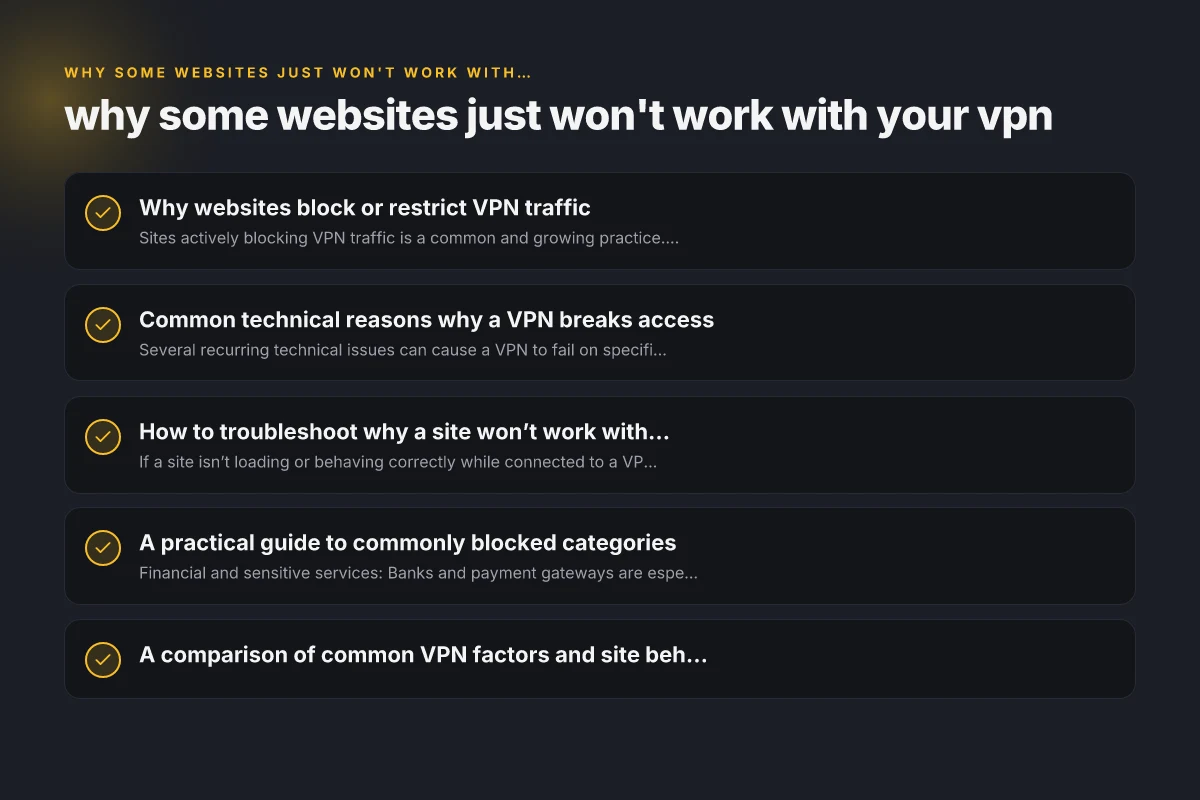
Why websites block or restrict VPN traffic
Sites actively blocking VPN traffic is a common and growing practice. Here are the main reasons they do it:
- Anti-fraud and security controls: Financial sites, email providers, and marketplaces want to reduce fraud. VPNs can mask a user’s location or history, so these services may block known VPN IP ranges.
- Compliance and regional licensing: Some content is restricted by geography. If a VPN makes you appear in a different location, the service may refuse access to enforce licensing or content rights.
- Abuse prevention: Large platforms (social media, forums, ad networks) monitor traffic patterns. If traffic consistently comes from data-center IPs, the site may throttle or block it to curb abuse.
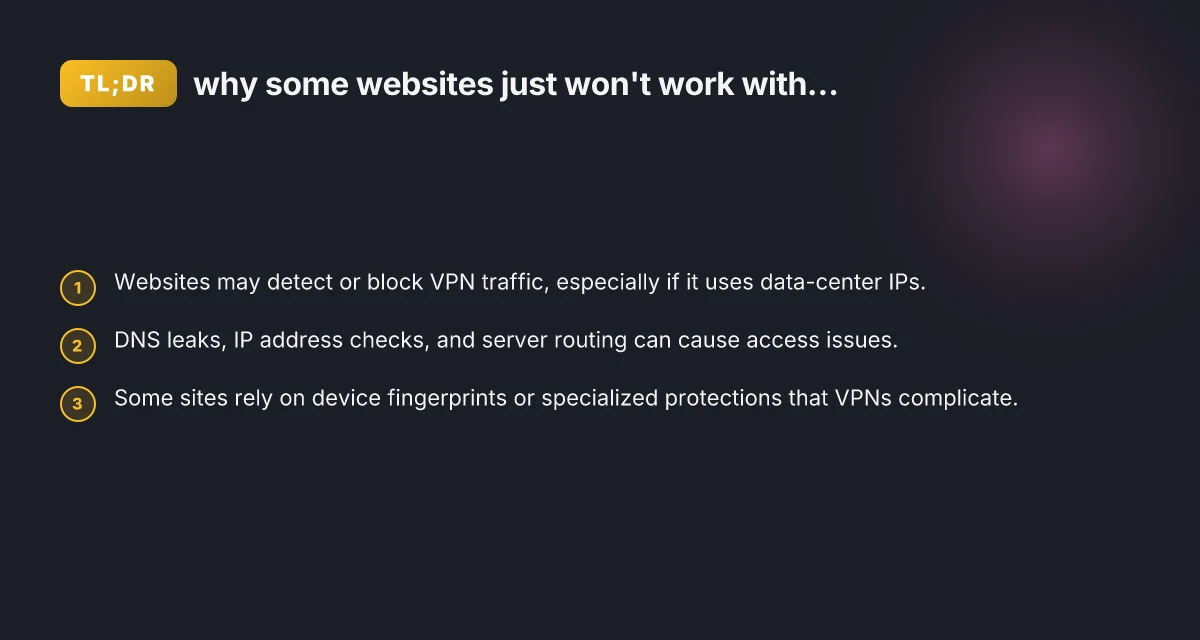
In practice, many websites rely on a mix of techniques to detect VPNs. It’s not just about the IP address. A site might combine geolocation, device fingerprinting, browser behavior, and connection metadata to decide whether to grant access.
Common technical reasons why a VPN breaks access
Several recurring technical issues can cause a VPN to fail on specific sites:
- IP address blocking: The site recognizes the IP as belonging to a VPN provider, data center, or hosting service and denies access.
- DNS resolution problems: If the VPN alters DNS settings and the new DNS server can’t resolve domain names correctly, pages won’t load or hang.
- WebRTC and leaks: In some cases, WebRTC or IPv6 leaks reveal your real IP, triggering blocks or confusing the site’s security checks.
- Split tunneling not enabled: If some traffic goes through the VPN while other traffic (like time-sensitive authentication) goes through your normal network, mismatches can trigger security protections.
- Authentication and session tokens: Some sites require geolocation or device signals compatible with your login session. A sudden change in IP and location can invalidate tokens and force re-authentication.
- Content delivery networks (CDNs): CDNs distribute content from many servers. If your traffic is routed through an unusual set of nodes, a site may occasionally fail to deliver content properly.
Common VPN features vs site compatibility
| Feature | Site compatibility (yes/no) | Typical impact | Best practice | Notes |
|---|---|---|---|---|
| Shared vs dedicated IP | Yes / No | IP stability varies | Prefer dedicated for persistence | Availability varies by provider |
| WireGuard / OpenVPN | Yes / No | Some sites block a protocol | Alternate to test | Some sites phase out deprecated protocols |
| Obfuscated servers | Yes / No | Helps in restrictive networks | Use obfuscated when in restrictive regions | Sometimes slower |
| Kill switch | Yes / No | Protects leak risk | Enable always | Critical for privacy |
| DNS leak protection | Yes / No | Prevents leaks | Enable DNS leak protection | Verify with tests |
| Automatically rotating IP | Yes / No | Breaks site sessions | Turn off for login-sensitive tasks | Useful for privacy |
Compiled November 2026; check the provider's site for current details. Why Mullvad VPN isn’t connecting
How to troubleshoot why a site won’t work with a VPN
If a site isn’t loading or behaving correctly while connected to a VPN, follow these diagnostic steps:
- Check for DNS leaks
- Run a DNS leak test while connected to the VPN to ensure your DNS requests aren’t leaking to your ISP or a non-VPN resolver.
- If leaks are detected, switch to a VPN server with DNS protection or enable DNS leak protection in the VPN app.
- Try different servers or regions
- Some VPN IPs are more heavily blocked than others. Switch to different servers within the same country or try another nearby country.
- If a site loads on a nearby server but not on your default, the issue is usually IP-based filtering.
- Enable or adjust split tunneling
- If your VPN supports split tunneling, route only the apps that need protection through the VPN and leave others to your regular connection. This reduces detection risk for sites that don’t like VPN usage.
- Test with split tunneling both enabled and disabled to identify which setup works best for the site.
- Check for WebRTC and IPv6 leaks
- Disable WebRTC in your browser or use a browser extension that blocks or masks WebRTC leaks.
- Disable IPv6 on devices or in the VPN settings if the site has trouble with IPv6-translated routes.
- Verify authentication behavior
- Some sites require consistent session data. If you notice repeated logins or CAPTCHAs after switching servers, keep a stable server for that site during your session.
- Examine the site’s status and regional content rules
- Confirm whether the site intentionally restricts access from certain regions or IP ranges, independent of your VPN. A quick check with a device not on VPN can reveal this.
A practical guide to commonly blocked categories
- Financial and sensitive services: Banks and payment gateways are especially strict about VPN traffic to minimize fraud. If you must access these, consider turning off the VPN for that session or using dedicated trusted networks when allowed.
- Streaming services and media libraries: Licensing boundaries often lead to VPN blocks. Some providers are better at detecting VPNs than others. A successful workaround may be to try different servers or disable the VPN for a moment to play a video and re-enable afterward if allowed.
- Email and messaging: Some providers block known VPN IPs to prevent abuse or phishing. If your email client won’t connect behind a VPN, test with a different server or temporarily disable the VPN to connect and fetch mail.
- E-commerce and marketplaces: These sites use dynamic IP checks, device fingerprints, and behavioral analytics. If you’re traveling or switching devices, you may encounter blocks that require additional verification.
A comparison of common VPN factors and site behavior
| Factor | What it means for sites | How to respond |
|---|---|---|
| VPN IP reputation | Some IP blocks are global | Try alternate servers; use a reputable provider with rotating IPs |
| DNS handling | DNS leaks cause misrouting | Enable DNS leak protection; use VPN’s DNS or a trusted DNS service |
| Data-center vs residential IPs | Data-center IPs are more often blocked | Look for “residential” or less-detected IP options if available |
| IP address change frequency | Frequent changes trigger re-auth | Use a single stable server for a session; avoid rapid switching |
| WebRTC/IPv6 leaks | Real IP exposed; triggers blocks | Disable WebRTC; manage IPv6 settings or caps in VPN app |
| Split tunneling configurations | Incorrect routing can break sites | Enable targeted tunneling for affected apps; test variations |
When a site simply won’t load, what should you do?
- Pause the VPN temporarily: If the site loads without the VPN, you’ve isolated the issue to VPN filtering or IP reputation. You can continue with VPN for other sites and disable it for this one as needed.
- Contact the site’s support or check status pages: Some sites publish notices about VPN blocks or ongoing regional restrictions. It can save time to verify.
- Check your VPN’s privacy and security settings: Ensure features like kill switch, DNS protection, IPv6 handling, and protocol selection (OpenVPN, WireGuard, etc.) align with the site’s expectations.
- Consider alternate access methods: If you must access a service for work or necessity, you might explore alternative secure connections, like a trusted corporate VPN, or access through a secured corporate network if policy allows.
Troubleshooting workflow for VPN-site issues
| Step | Action | Expected outcome | Quick check | Notes |
|---|---|---|---|---|
| 1 | Change server | Different IP | Try nearby region | Test multiple locations |
| 2 | Switch protocol | Different handshake | Observe connection | OpenVPN vs WireGuard |
| 3 | Disable IPv6 | Clear routing | Access site | Some sites ignore IPv6 |
| 4 | Check DNS | No leaks | Run DNS test | Use VPN-provided DNS |
| 5 | Clear cookies | New session | Revisit site | Session-bindings can block |
| 6 | Test with mobile | Alternate device | Similar results | Mobile networks differ |
| 7 | Contact support | Guidance | Get site-specific tips | Provider or site |
Compiled November 2026; check the provider's site for current details.
Do VPN providers offer workarounds?
Some providers attempt to minimize breakage with:
- Rotating IP pools to reduce block frequency
- Residential IP options or peer-to-peer networks that appear less like data-center traffic
- Obfuscation features to disguise VPN traffic patterns
- Custom DNS services to prevent leaks and improve resolution accuracy
However, these approaches aren’t universal cures. Some sites invest heavily in detection, and continual evasion is a cat-and-mouse game. The key is to balance privacy, security, and accessibility. Why does Proton VPN keep disconnecting
Best practices for a smoother VPN experience
- Keep your VPN software updated: Security patches and improved routing reduce the risk of blocks due to outdated protocols.
- Use reputable, well-supported servers: Providers with robust IP rotation policies and diverse server networks are less likely to be entirely blocked.
- Test before critical tasks: If you need reliable access to a critical service, test your VPN setup beforehand to avoid last-minute disruptions.
- Be mindful of legal and policy considerations: Some jurisdictions and sites have strict rules about VPN use. Always ensure you’re compliant with terms of service and local laws.
The recommended approach: a practical workflow
- Step 1: Identify the problem site and replicate the issue with the VPN on and off.
- Step 2: Check DNS and IP behavior using simple online tools (DNS leak test, IP check).
- Step 3: Try multiple servers, adjusting region and latency.
- Step 4: Enable split tunneling if needed, to isolate sensitive tasks from VPN-protected traffic.
- Step 5: If a site remains blocked, consider temporarily turning off the VPN, or escalate to the provider’s support for guidance on known blocks or recommended servers.
Conclusion
VPNs are powerful tools for privacy and security, but they can clash with the way some websites defend their services. The blocks usually come down to IP reputation, DNS handling, and more sophisticated site defenses like device fingerprinting. By understanding the common failure modes and following a structured troubleshooting approach, you can often regain access or find a setup that preserves both your privacy and your ability to reach the sites you need. If you frequently encounter these issues, choose a VPN provider with a strong track record for residential IP options, reliable DNS protection, and responsive support to help navigate VPN-blocked sites.