How to easily disable VPN or proxy on your TV
A straightforward guide to turning off VPNs or proxies on smart TVs and streaming devices, with device-specific tips and steps.
If you’re troubleshooting streaming issues or security prompts, you’re not alone in wanting to disable a VPN or proxy on your TV. TVs and streaming boxes don’t always show the VPN status in a way that’s obvious, but you can usually find and turn off the VPN or proxy by checking the device’s network settings, app settings, or your router. Below is a practical, device-oriented guide to getting back to a direct internet connection for your TV.

Quick comparison of where to disable VPN or proxy
| Option area | On-TV settings | Streaming app settings | Router settings | Confirmation method |
|---|---|---|---|---|
| Fastest try | Yes | No | No | Quick check by test |
| Primary location | TV menu | App menu | Router admin | Status indicator |
| Typical label | VPN/Proxy off | VPN/Proxy off in app | VPN/Proxy off in router | Test connection |
| Pros | Immediate change | App-scoped | Network-wide | Clear result |
| Cons | May not affect all apps | May affect only that app | Affects all devices | Needs test |
| Example | Built-in VPN toggle | Streaming app privacy | Router VPN toggle | IP/geo test |
Compiled November 2026; check the provider's site for current details.
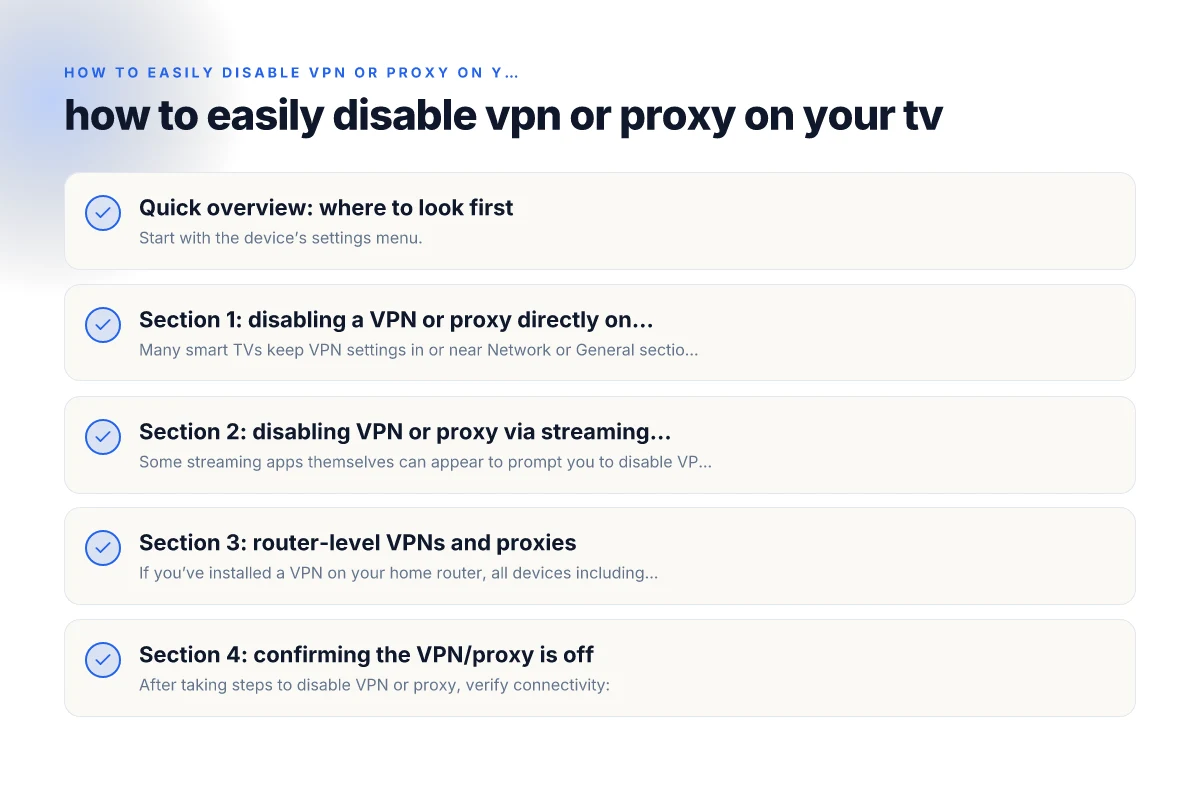
Quick overview: where to look first
- Start with the device’s settings menu.
- Look for sections named Network, Internet, or Connections.
- If you use a VPN app on the TV, you’ll need to close or uninstall/disable that app.
- If the VPN is configured at the router, you’ll need to disable it there, which affects all connected devices.
- Some streaming services discourage or block VPN usage. In that case, removing the VPN may restore access.
Why it matters
- VPNs can route traffic through remote servers, which some streaming services detect and block.
- Proxies are often configured at the device or router level and can be harder to locate on a TV.
- If you’re not sure where the VPN is configured, start with the TV’s own settings, then check any connected apps, then your router.
Section 1: disabling a VPN or proxy directly on your TV
Many smart TVs keep VPN settings in or near Network or General sections. Here’s how to proceed on common axes:
- Samsung Smart TV (Tizen OS)
- Settings > General > Network > Network Status
- Select IP Settings and set Proxy Server to Off (or Proxy to Off)
- LG Smart TV (webOS)
- Settings > Network > Wired/Wi-Fi (depending on connection)
- If a Proxy is listed, disable it or set to Automatic. Some models only show a VPN app instead.
- Sony Android TV / Google TV
- Settings > Network & Internet
- Look for a VPN or Proxy entry. Disable or delete the VPN profile
- Other Android TV devices
- Settings > Network & Internet > VPN
- Tap the VPN profile and Disconnect or Delete
If your TV doesn’t show a VPN option in Settings, you may have installed a VPN app on the device. In that case:
- Open the VPN app and disconnect or quit the app.
- If possible, uninstall the VPN app to ensure it doesn’t auto-reconnect on reboot.
Section 2: disabling VPN or proxy via streaming apps
Some streaming apps themselves can appear to prompt you to disable VPNs or proxies, or you may notice playback errors tied to VPN usage. Try these steps:
- Prime Video, Netflix, Hulu, YouTube apps
- Force stop the app: Settings > Apps > [App Name] > Force Stop
- Clear cache/data if the app stores network preferences (optional)
- Reopen and test playback without VPN
- Amazon Prime Video shows proxy hints
- If you see a message to disable a VPN, switch off the VPN on the TV first, then relaunch
- YouTube and YouTube TV
- YouTube TV specifically discourages VPNs. Turning off the VPN on the TV is the recommended path
Note: Some apps rely on device network configuration and won’t bypass a VPN if the device remains connected to a VPN tunnel. So, turning off the VPN at the TV level is typically sufficient for app-level prompts.
Section 3: router-level VPNs and proxies
If you’ve installed a VPN on your home router, all devices including your TV will appear to be using the VPN. To disable: Changeed dashlane password but cannot log in
- Access your router’s admin panel (often at 192.168.0.1 or 192.168.1.1)
- Sign in with your admin credentials
- Look for VPN, VPN Client, or Proxy settings
- Disable the VPN client or reset the router’s network settings to automatic
- Reboot the router and the TV to ensure changes take effect
Pros/cons of router-level VPNs:
- Pros: One place to manage VPN for all devices
- Cons: Requires router access and can affect other devices/ services
- Tip: If you only need to disable VPN for streaming on the TV, consider toggling off the VPN client on the router while leaving other devices untouched, if your router supports per-device rules.
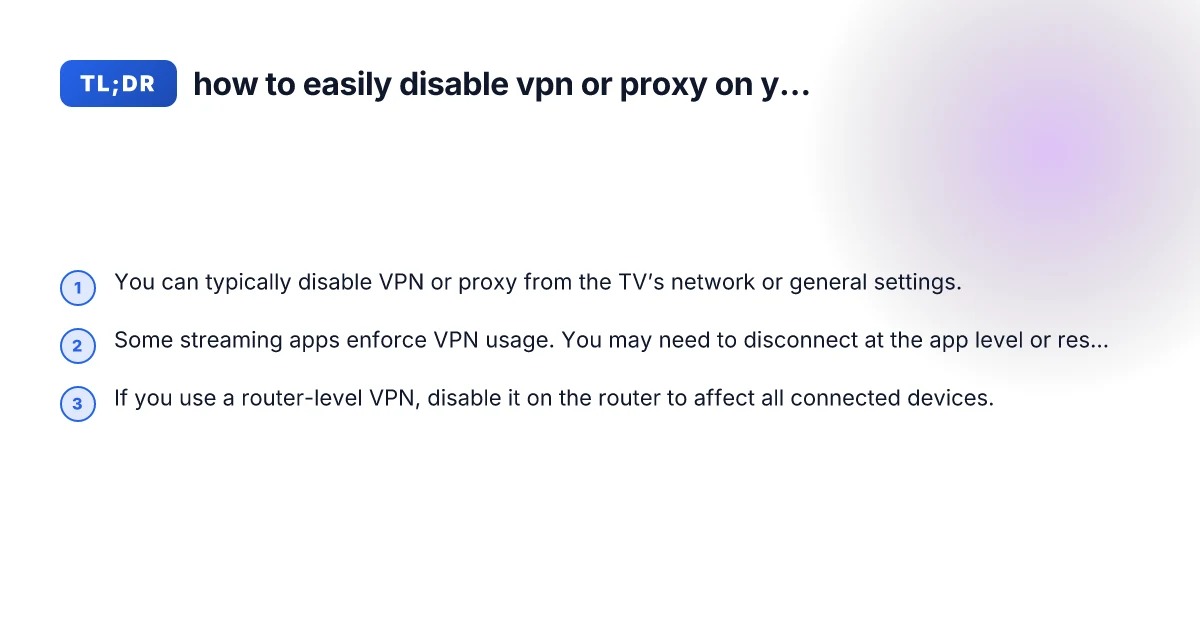
Step-by-step actions by area to disable VPN or proxy
| Section / Area | Key steps | Typical prompts | Expected outcome | Recheck steps |
|---|---|---|---|---|
| Quick overview | Locate VPN/proxy indicator | Open network menu | Identify active VPN/proxy | Note changes you expect |
| Section 1: On-TV | Open TV settings > Network > VPN/Proxy | Toggle off | Local services resume | Reopen apps to test |
| Section 2: Streaming apps | Open app > Settings > Privacy/Network | Disable VPN in app | App uses direct connection | Reopen app, play content |
| Section 3: Router | Access router admin > VPN/Proxy | Disable or remove profile | Network devices use normal IP | Reboot router if needed |
| Section 4: Confirm off | Do a test stream or browser check | Refresh network status | IP shows usual location | Try multiple sites |
| Section 5: Pitfalls | Check for per-app proxies | Disable auto-connect | Ensure all devices updated | Clear DNS cache |
| Section 6: Compliance | Verify policy requirements | Document changes | Compliance met | Archive settings |
Compiled November 2026; check the provider's site for current details.
Section 4: confirming the VPN/proxy is off
After taking steps to disable VPN or proxy, verify connectivity:
- Test a direct connection
- Open a browser on the TV (if available) and visit a site without VPN-detected restrictions
- Try streaming a show you know is region-locked to check if the VPN was the issue
- Check the network status indicator
- Some TVs show network status icons that change when a VPN is in use
- Reboot devices
- Turn off the TV, unplug for 30 seconds, then power back on
- If you use a smart speaker or other connected devices, reboot them as well
If you still face issues after disabling, consider temporarily turning off any additional security features like DNS over HTTPS (DoH) or private DNS, which some devices use alongside VPNs. Protono extension for Microsoft Edge
Section 5: common pitfalls and quick fixes
- Pitfall: The VPN app auto-restarts after reboot
- Fix: Uninstall or disable the app completely, or disable auto-start in app settings if supported
- Pitfall: Proxy settings returned after reboot
- Fix: Remove saved proxy settings in TV’s network configuration and in any related VPN app
- Pitfall: Router-based VPN re-enables after firmware update
- Fix: Re-check the VPN settings after updates and set a reminder to confirm VPN disabled post-update
- Pitfall: Some smart TVs don’t show explicit VPN options
- Fix: Focus on Network settings and ensure there is no Proxy or VPN entry. If not found, check for VPN apps on the device
Table: Device-level vs. router-level VPN management
- Device-level VPN (on TV)
- Pros: Precise control per device
- Cons: Can be hidden in menus. Apps may override settings
- Router-level VPN
- Pros: Central management. Covers all home devices
- Cons: Affects all devices. More complex to fine-tune
| Scenario | Where to look | How to disable | Aftercare |
|---|---|---|---|
| VPN configured on TV | TV Settings under Network or General; VPN section | Turn off, delete, or disconnect VPN profile | Reboot TV; test streaming without VPN |
| VPN app installed on TV | App list or Settings > Apps | Force stop or uninstall app | Reboot device; ensure no auto-start |
| VPN on router | Router admin panel | Disable VPN client or reset to default | Reboot router and connected devices; test TV connection |
| Proxy configured on TV | TV Settings under Network/Proxy | Proxy off or automatic | Reboot and verify network status |
Quick criteria to decide which method to use
| Criterion | On-TV method | App method | Router method | Best for |
|---|---|---|---|---|
| Scope | Local device only | Single app | All devices on network | If many devices need change |
| Speed | Fast | Moderate | Slow (config) | Quick test on one device |
| Persistence | Tied to device/app | App-specific | Network-wide | Long-term solution across devices |
| Complexity | Low | Moderate | Moderate to high | Simple fix vs thorough control |
| Reversibility | Easy | Easy in app | Moderate | Temporary vs permanent |
| Detection | Easy to verify | Easy to verify | Requires test | Clear status check |
Compiled November 2026; check the provider's site for current details.
Section 6: when you truly need to disable VPN for compliance or access
- Content licensing and geo-restrictions: Some services ban VPN use. Disabling VPN can restore access to local catalogs.
- Corporate or school networks: If your TV is connected to a managed network, VPN policies could be enforced by the network. In that case, contact the network administrator to ensure devices in the network are allowed, or use a direct home network.
- Security considerations: If you were using a VPN for privacy on a public network, ensure your home network is secured with a strong password and updated firmware.
Final recommendations
- Start at the device level: Navigate to the TV’s Settings, then to Network or Internet, and disable any VPN or Proxy entries you find.
- Check for VPN apps: If you installed a VPN app, either disable or uninstall it, and ensure it does not auto-start.
- If you use a VPN on your router: Disable the VPN client or reset the router’s network settings to Automatic so your TV uses a direct connection. Remember this will affect every device on your network.
- Reboot after changes: A simple reboot confirms that the VPN/proxy is no longer active and helps apply the new network configuration.
- If issues persist: Double-check streaming apps for prompts that reference VPN use, clear app data/cache if available, and consider temporarily testing without the TV’s Wi-Fi to isolate the issue.
By following these steps, you can easily disable a VPN or proxy on your TV and restore a straightforward, direct internet connection for streaming and app use. If you’d like, tell me your specific TV model or streaming device, and I’ll tailor the steps precisely to that device. How to disable NordVPN's password manager nordpass