Eduroam not working with VPN
Quick, practical guidance for troubleshooting VPN issues on eduroam and why the problem often lies with network policies and DNS.
Eduroam not working with vpn: what you need to know If you’re connected to eduroam and your VPN isn’t working, you’re not alone. eduroam is designed to provide campus-wide wireless access, but it can impose restrictions that interfere with VPNs. This article walks through why this happens and what you can do to regain connectivity without breaking campus policies.

Why eduroam can disrupt VPN connections
Institutional controls and traffic shaping
- Many university networks implement traffic shaping or firewall rules to manage bandwidth and protect students from malware.
- VPN traffic can look unusual to administrators, which leads to blocking or throttling.
- Some eduroam configurations require DNS and DNSSEC consistency that VPNs don’t always satisfy.
DNS handling and split tunneling
- VPNs typically rely on the client’s DNS settings to resolve domain names through the VPN tunnel or the local network.
- If eduroam’s DNS is aggressive or uses restrictive filters, VPN DNS leaks or failed resolutions can occur.
- In some cases, VPN DNS requests are blocked, causing websites to fail to load while the VPN appears connected.
Authentication and captive portals
- Even if you authenticate to eduroam, some networks will present a captive portal or require periodic re-authentication for policy updates.
- This can interrupt VPN sessions, especially on mobile devices or laptops that sleep or switch networks.
Protocol and port restrictions
- Some eduroam deployments block certain VPN protocols (for example, PPTP, L2TP over IPsec, or OpenVPN) or restrict common VPN ports.
- If your VPN uses a blocked protocol or port, you’ll see connection attempts fail or time out.
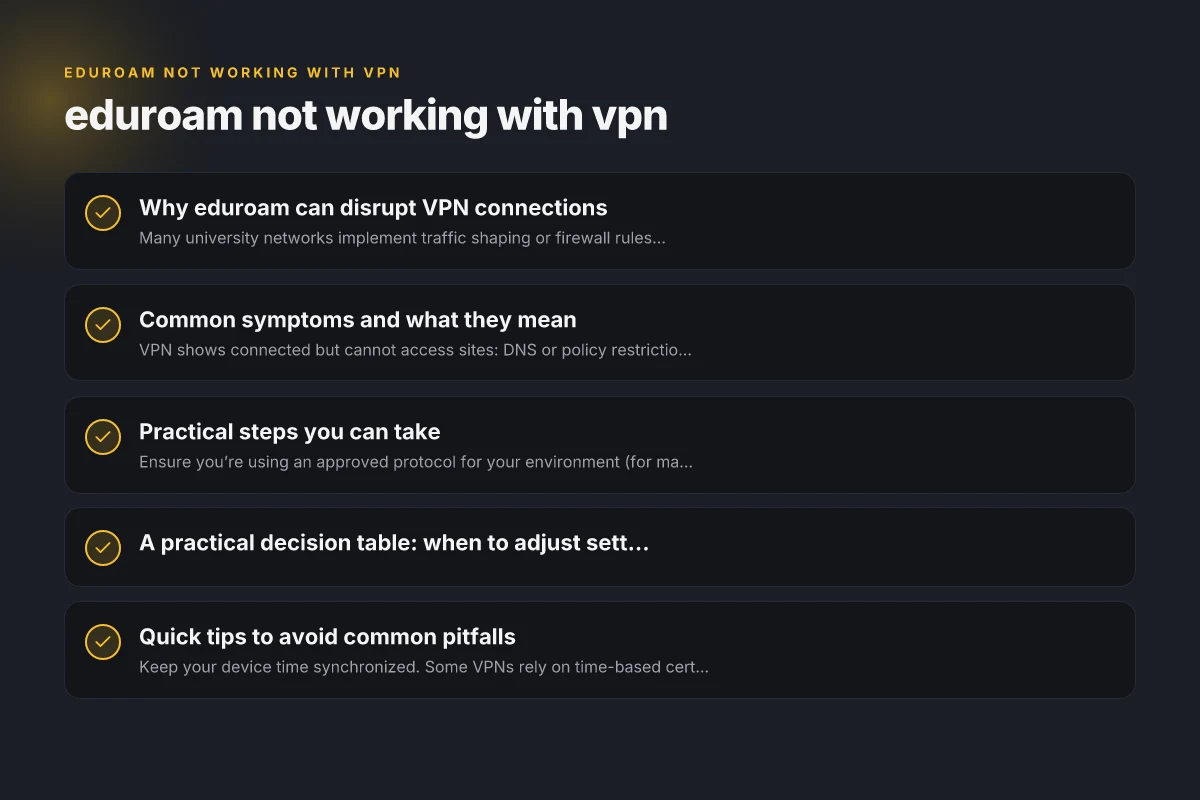
Common symptoms and what they mean
- VPN shows connected but cannot access sites: DNS or policy restrictions are likely.
- VPN cannot connect at all: protocol or port is blocked, or authentication timed out.
- VPN connects on another network but not on eduroam: the eduroam network is actively filtering VPN traffic.
- VPN connections drop after a few minutes: captive portal re-auth, IP changes, or aggressive timeout policies.
Practical steps you can take
Check your VPN configuration
- Ensure you’re using an approved protocol for your environment (for many campuses, IKEv2 or OpenVPN are common, but verify with your IT policies).
- Try different servers/location within the VPN app to see if any are reachable over eduroam.
- Confirm DNS settings: either push or use DNS servers provided by the VPN, or set a reliable public DNS (e.g., 1.1.1.1, 8.8.8.8) to see if name resolution improves.
Adjust client-side settings
- Enable or disable DNS leakage protection depending on what works on your campus network.
- Disable IPv6 if your eduroam network has issues with IPv6 VPN routing, then re-test.
- Try split tunneling if your VPN supports it, so only corporate traffic goes through the VPN and general traffic uses eduroam directly (note: this depends on campus policy and VPN capability).
Test with different scenarios
- Connect to eduroam, then try a basic VPN ping or connection test to the VPN’s server to isolate DNS versus TCP/UDP issues.
- Temporarily connect to a different network (e.g., a personal hotspot) to confirm the VPN itself works outside eduroam.
- Re-connect to eduroam after a brief pause, as some campuses require re-authentication on changes.
Leverage campus resources
- Many universities publish eduroam support guides or help desks that address VPN compatibility.
- Some campuses maintain whitelists for common VPN endpoints. If yours is blocked, IT may be able to adjust settings or provide an exception.
- Check if the campus uses a captive portal for VPN clients and whether you need to accept terms or update credentials mid-session.
Work with alternatives when VPN is restricted
- If VPN traffic is blocked or unreliable, consider institution-approved remote access methods (e.g., SSH login to a campus server, or access to internal tools via web portals).
- Use campus-approved cloud services that are accessible without a VPN, if permitted by policy.
- In some cases, tunneling VPN over a different network path (e.g., a wired connection, a different SSID with fewer restrictions) may help, though this is not always possible on eduroam.
A practical decision table: when to adjust settings versus seek help
| Situation | Likely cause | What to try first | When to seek IT support |
|---|---|---|---|
| VPN shows connected but cannot browse | DNS or split tunneling issues | Change DNS to VPN’s DNS, toggle IPv6, test with OpenVPN vs IKEv2 | IT can confirm campus DNS rules and provide approved config |
| VPN cannot connect at all | Protocol/port blocked | Switch to a different protocol or port if allowed | IT might block or whitelist specific VPN endpoints |
| VPN works elsewhere, not on eduroam | eduroam network policy | Try a different server, adjust split tunneling, ensure re-auth | IT can confirm eduroam policy and alternative access options |
| Re-authentication required mid-session | Captive portal or policy refresh | Re-authenticate, wait for connection to re-establish | IT can provide guidance if captive portal is persistent |
| Slow or unstable VPN on eduroam | Traffic shaping or congestion | Connect to a closer VPN server, reduce encryption overhead, check for bandwidth limits | IT can confirm network health and possible QoS rules |
Quick tips to avoid common pitfalls
- Keep your device time synchronized. Some VPNs rely on time-based cert checks.
- Use trusted VPN apps and updated clients. Outdated clients are more prone to handshake or certificate errors on restricted networks.
- Avoid lengthy VPN sessions on unstable wireless connections. If the connection drops, your campus network may terminate tunnels.
- Document your campus network policy. Knowing whether eduroam allows VPN protocols can save time with IT support.
- If you must access sensitive work, consider using campus-approved remote services rather than a personal VPN if the policy requires it.
A short comparison: VPN on eduroam vs other networks
| Network type | Typical VPN behavior | Likely blockers | Best workaround |
|---|---|---|---|
| Eduroam (campus) | Mixed: some users see success, others blocked | Protocol/port blocks, DNS handling, captive portals | Try alternate protocols/servers, adjust DNS, use split tunneling if allowed, contact IT |
| Home Wi-Fi | VPN usually works well | Minimal | Use normal VPN settings, fewer restrictions |
| Mobile hotspot | Often works but depends on carrier | Carrier-level NAT, QoS | Use VPN with standard ports, or adjust protocol |
| Public Wi-Fi | Highly variable | Captives, proxies, strict filtering | Use reputable VPN with obfuscated servers if available; verify policy |
Bottom line recommendations
- Start with a quick self-check: confirm which VPN protocol you’re using, try a different server, and experiment with DNS settings.
- If you’re on eduroam and VPN won’t connect, don’t force a workaround that violates campus policy. Instead, test with approved settings and reach out to your IT department for guidance.
- Document any changes you make and the outcomes. This helps IT diagnose whether the issue is client-side, network-side, or policy-based.
- If the VPN remains unreliable on eduroam, consider alternative access methods provided by your institution or connect to a different network where VPN access is permitted, especially for sensitive operations.
Final recommendation Eduroam not working with a VPN is frequently a policy and DNS-related hurdle rather than a failure of your device. Start with careful configuration tweaks on the client side, verify protocol and DNS behavior, and engage your campus IT if the problem persists. With the right approach, you can usually regain secure access without compromising the network’s protections.